
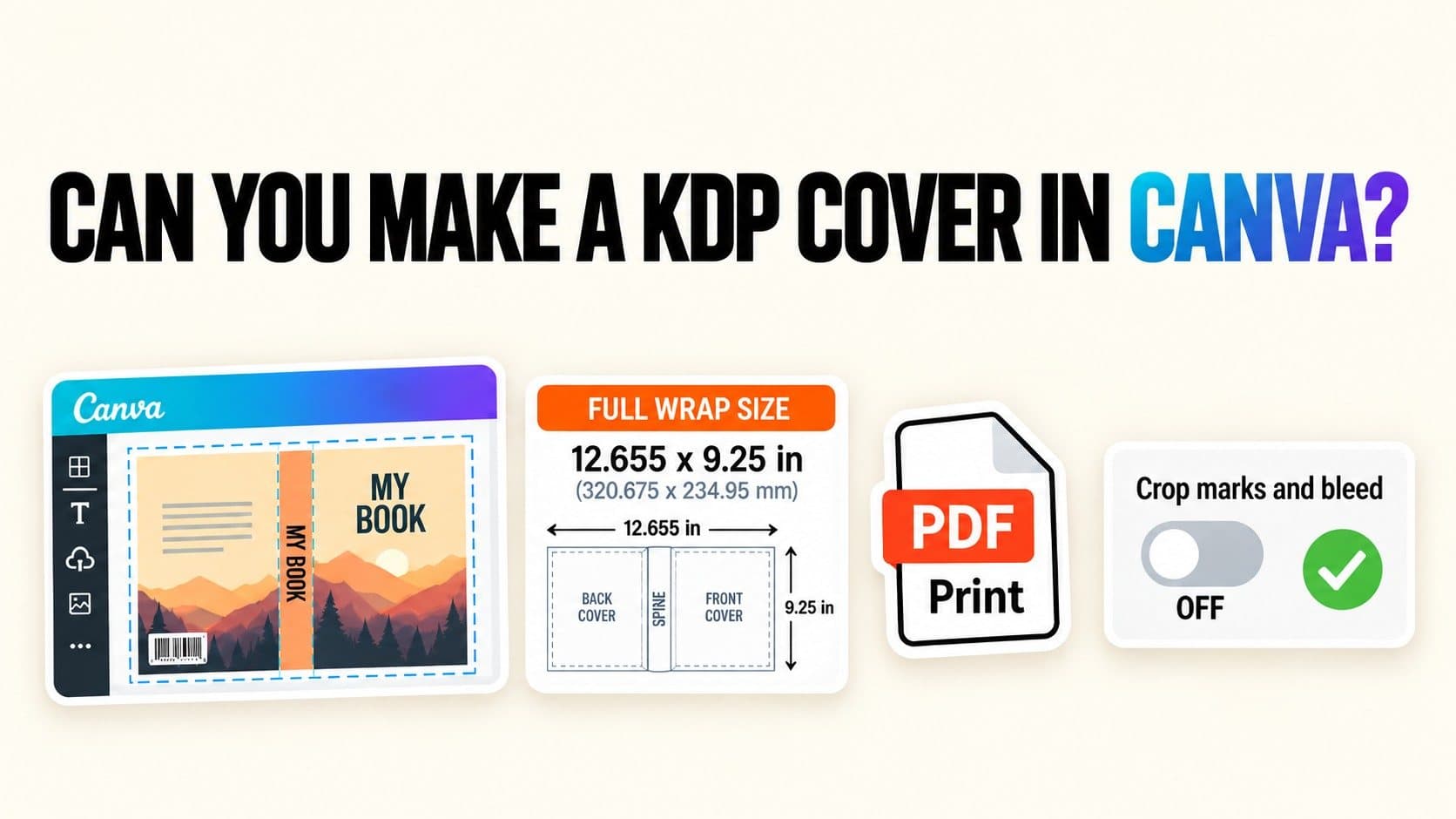

Can You Make a KDP Cover in Canva? Yes, With the Right Export Settings
Key takeaways
- Can you make a KDP cover in Canva? Yes. A free Canva account produced a paperback cover PDF at exactly the size KDP asks for, with fonts embedded.
- What size? Not 6 x 9. A paperback cover is one page holding back, spine, and front, plus 0.125 inches of bleed. For a 6 x 9 book with 180 pages on white paper, that is 12.655 x 9.25 inches.
- Which export? PDF, Print preset, “Crop marks and bleed” switched off. With it on, our file came out 13.13 x 9.72 inches, 0.47 inches too big each way.
- Before you upload: run the PDF through the free KDP cover validator for format, resolution, and colour, then check the page size yourself: both our exports passed the validator, including the one that was the wrong size.
1. How We Tested a Canva Cover for KDP
On September 27, 2026, we built one paperback cover in a free Canva account for a made-up business title, The Quiet Pipeline: 6 x 9 inches, 180 pages, black-and-white interior, white paper. KDP's white-paper formula (0.002252 inches per page, the same one our spine width calculator uses) gave a 0.405-inch spine and a 12.655 x 9.25-inch cover.
We exported the design twice, read each PDF's page size, trim and bleed boxes, colour profile, and fonts, then ran both through our free KDP cover validator.
What we did not test: Canva Pro, CMYK export, or a real KDP upload with a printed proof. What we say about Pro comes from Canva's own pages, linked where it appears.
2. What Size Should a KDP Cover Be in Canva?
Your cover size is not your trim size. KDP prints the back cover, the spine, and the front cover from one PDF page, so the Canva design has to be that whole spread. The formula from KDP's paperback cover guide is: bleed + back + spine + front + bleed wide, and bleed + height + bleed tall, with 0.125 inches of bleed on each outer edge.
The spine changes with page count and paper, so settle the interior before you size the cover. Here is the math for our test book:
| Part | Our 6 x 9, 180-page book | Where it comes from |
|---|---|---|
| Back cover | 6 in | Trim width |
| Spine | 0.405 in | 180 pages x 0.002252 in (white paper) |
| Front cover | 6 in | Trim width |
| Bleed, left and right | 0.125 in each | KDP paperback cover guide |
| Full width | 12.655 in | 0.125 + 6 + 0.405 + 6 + 0.125 |
| Full height | 9.25 in | 0.125 + 9 + 0.125 |
Cover size for our test book. Your spine will differ: get it from KDP's cover calculator or our spine width calculator.
In Canva, choose Create a design, then Custom size, set the unit to inches, and type the full width and height. Canva accepted 12.655 exactly.
For a visual guide, download the PNG template from KDP's cover calculator, place it as the bottom layer in Canva, and delete it before you export.
3. Where Do the Spine, Barcode, and Text Go?
The layout rules from KDP's cover guide that matter most:
- Bleed. Background colour or images should run all the way to the edge of the Canva page. The outer 0.125 inches is trimmed off.
- Safe zone. Keep title, subtitle, author name, and back cover copy at least 0.125 inches inside the trim line, which means 0.25 inches from the edge of your Canva page.
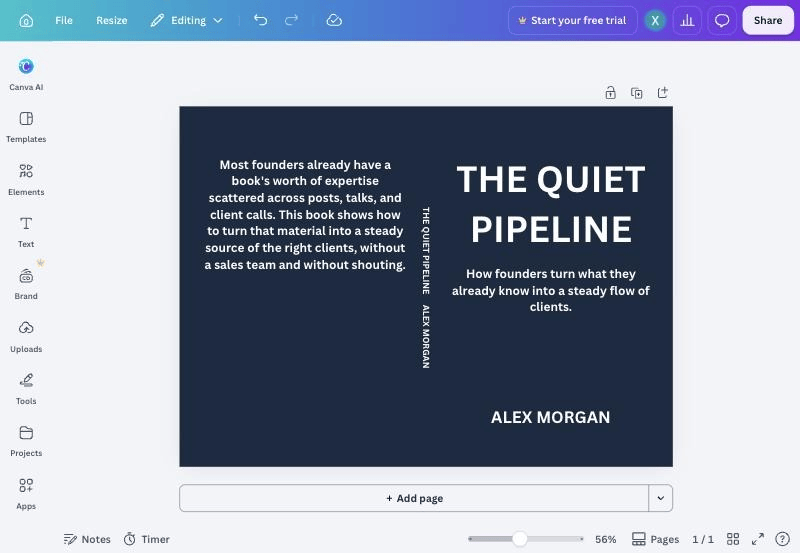
- Spine text. KDP allows it only on books with more than 79 pages, with at least 0.0625 inches of space on each side. On our 0.405-inch spine, a 16 pt title rotated 90 degrees fit with about 0.07 inches on each side.
- Barcode. Leave a clear area of about 2 x 1.2 inches in the lower right of the back cover, at least 0.25 inches from the spine and the trim. If your PDF has no barcode, KDP adds one there.
- Minimum text size. KDP asks for at least 7 pt.
Tip: the spine sits exactly at the page centre, and Canva drops new text boxes at the centre, so rotating one to 90 degrees in the Position panel put our spine title in place.
4. Which Canva Export Settings Does KDP Need?
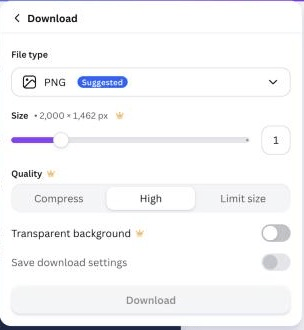
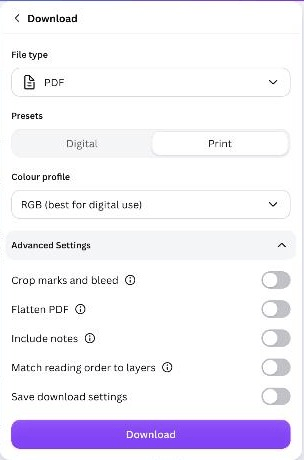
This is where our test found the trap. In Canva's current Download panel, PDF has two presets, Digital and Print, and the print options sit under Advanced Settings:
| Canva setting | Use for KDP | Why |
|---|---|---|
| File type | KDP wants a single-page PDF. Canva suggested PNG at 2,000 x 1,462 px, about 158 DPI at this size. | |
| Preset | Canva's help pages list PDF Print as the 300 DPI option. | |
| Colour profile | RGB (free) or CMYK (Pro) | CMYK carries a Pro crown on free accounts. |
| Crop marks and bleed | Off | Your custom size already includes KDP's bleed. See section 5. |
| Flatten PDF | Optional | Helps with transparency and effects; our flat design did not need it. |
Canva Download panel, PDF with the Print preset, tested September 27, 2026.
5. What Happened When We Turned On Crop Marks and Bleed?
The checkbox sounds like exactly what a print cover needs. In our test it made the file the wrong size.
Canva treats your whole design as the trimmed page. With “Crop marks and bleed” on, it adds 3 mm of bleed around that page and then a white margin with crop marks outside it. Our 12.655-inch design already included KDP's bleed, so the exported PDF grew to 13.13 x 9.72 inches. KDP's guide also asks you to remove crop marks before you upload.
| What we measured | Export A: crop marks off | Export B: crop marks on |
|---|---|---|
| PDF page size | 12.656 x 9.25 in | 13.129 x 9.723 in |
| Matches KDP's size for this book | Yes | No, 0.47 in too big each way |
| Crop marks in the file | No | Yes |
| Extra bleed added by Canva | None | 3 mm (0.118 in) per side |
| Colour profile | sRGB | sRGB |
| Text | Vector, font embedded | Vector, font embedded |
| File size | 21.6 KB | 21.8 KB |
Both exports from the same Canva design, free account, PDF with the Print preset, September 27, 2026.
You could size the design to the trim only (12.405 x 9 inches here) and let Canva add bleed, but its bleed was 3 mm, just under KDP's 0.125 inches (3.2 mm), and the crop marks still come with it. Full KDP size with the checkbox off is simpler and gave the exact size.
6. What Did the KDP Cover Validator Say?
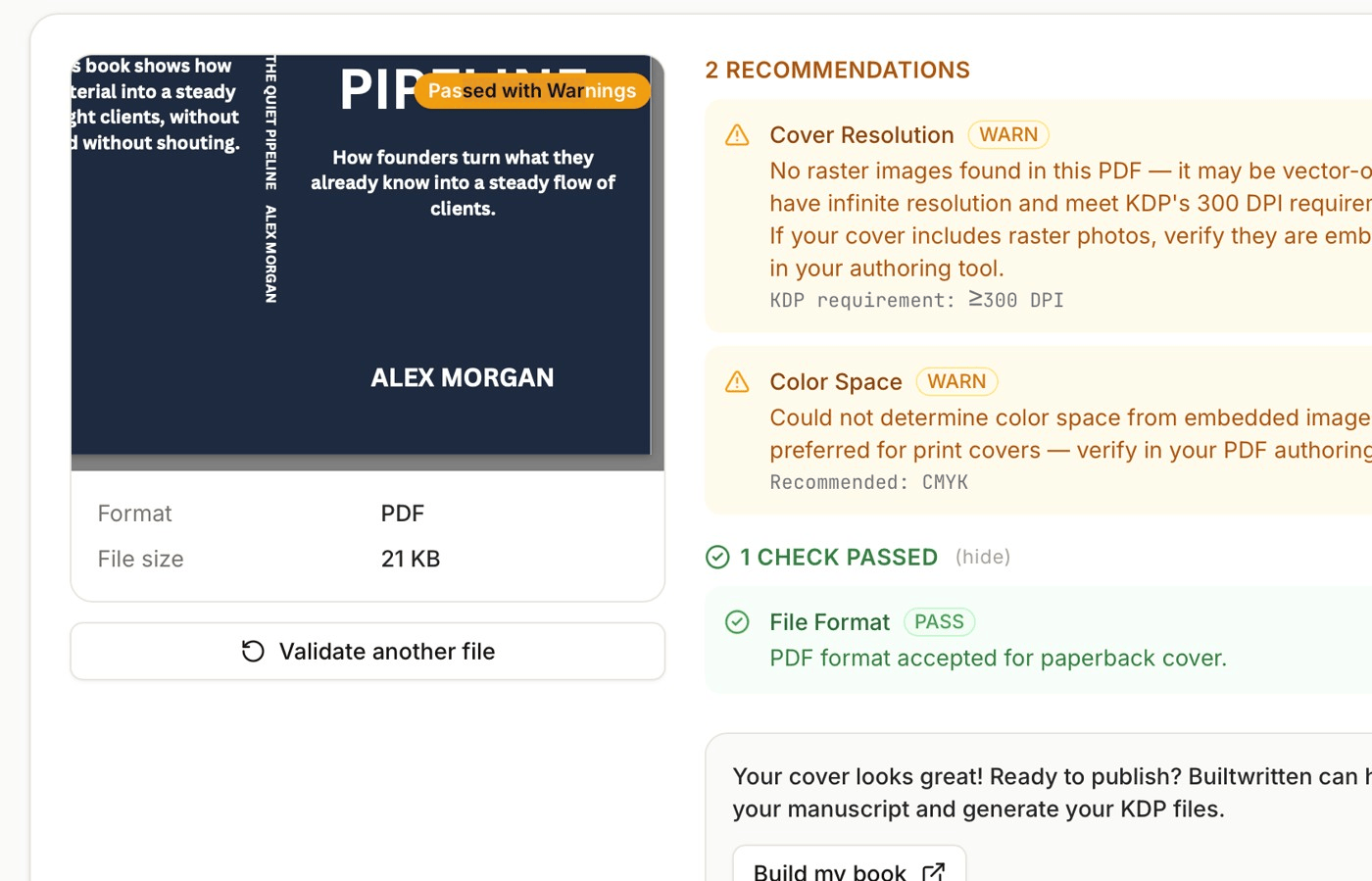
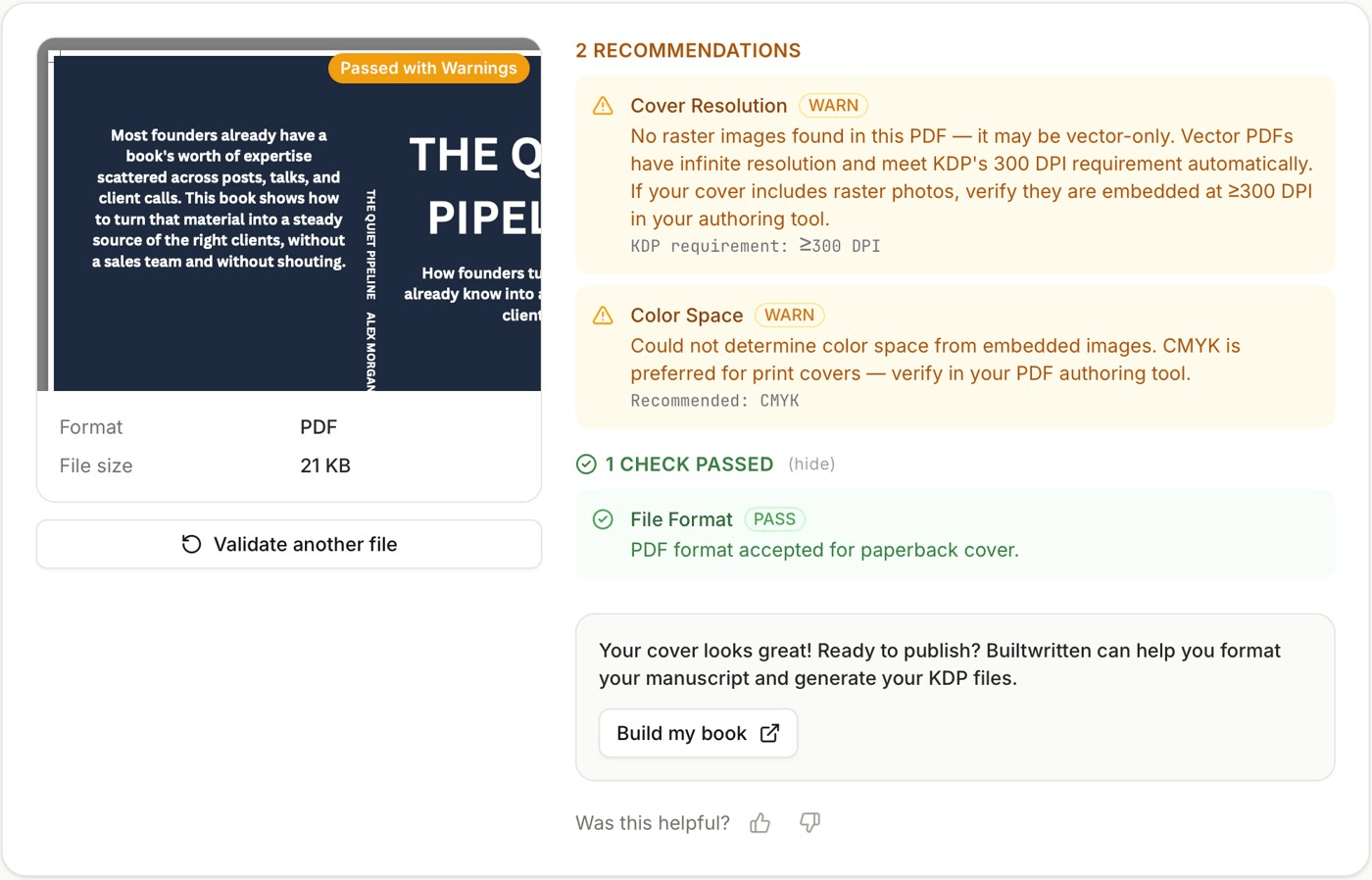
Both exports came back Passed with Warnings, with the same three results. That includes Export B, the file that is 0.47 inches too big and carries crop marks.
File Format: pass. “PDF format accepted for paperback cover.”
Cover Resolution: warning. No raster images were found, which is correct: Canva exported our text and background as vector shapes, which meet KDP's 300 DPI rule at any size. The warning matters only if your cover has photos.
Color Space: warning. With no images to read, the validator could not name a colour space and noted that CMYK is preferred for print. Our own check found sRGB, Canva's free-plan output.
The lesson: these checks cover format, resolution, and colour, not page size, because the validator never asks for your trim size or page count. A pass means the file is a usable print PDF, not that it fits your book. Compare the PDF's page size with KDP's cover calculator yourself: on a Mac, Preview shows it under Tools, Show Inspector; in Adobe Acrobat Reader, under File, Properties.
Our spine width calculator gives the full cover size from trim, page count, and paper, so the number to compare against takes a few seconds to get. Check it before you export, and again once your final page count is set.
7. Does Canva's RGB Export Matter for Printing?
Screens mix colour from light (RGB); printers mix it from cyan, magenta, yellow, and black ink (CMYK). Some bright RGB colours have no ink match, and Canva's own print colour help page says out-of-range colours can look “softer or more muted” on paper.
Our free-account exports were sRGB. KDP's cover guide asks for CMYK images, but RGB PDFs are accepted. The shift shows most in neon greens, electric blues, and hot pinks; navy, black, and muted tones usually print close to the screen.
CMYK export needs Canva Pro, Teams, Education, or Nonprofits, per Canva's download file types page; Pro is US$144 a year for one person (checked September 27, 2026). Either way, order a printed proof from KDP before you publish. It is the only test of how your colours actually print.
8. Can You Use Canva Elements on a Book You Sell?
Mostly yes. Canva's help page on designing products for sale uses a book as its example: you can start from a Canva template and sell the book, as long as you are not selling the template as-is and the design is your own.
Three limits from Canva's Content License Agreement matter for authors:
- No trademarks. Canva content cannot become part of a logo, trademark, or business name.
- Pro content stays in Canva. Pro elements must be used inside a Canva design, not downloaded into another program.
- You license it, you do not own it. Canva's help page notes that some print-on-demand services require you to own the copyright in everything you upload, and Canva content does not meet that bar.
We are not lawyers, and licences change, so read Canva's current terms before you publish. Our guide to AI book cover compliance on KDP covers the rights questions that actually get KDP accounts flagged, including stock images and fonts.
9. Where Does Canva Stop Working for a Book Cover?
Canva did the core job in our test. It also left four things to you:
- No spine calculation. You bring the size from KDP or our spine width calculator and resize by hand when the page count changes.
- No KDP template import. You can place KDP's PNG template as a guide image, but Canva does not read it as guides or safe zones.
- Basic typography. Letter and line spacing, not the fine type control of a layout program.
- No check before export. Nothing in Canva warned us that the crop-marks export was the wrong size for KDP.
Canva is the right tool if you want full control of the look and you are happy to do the sizing yourself. Hire a designer if the cover is carrying a brand or a launch budget; our guide to business book cover design covers what makes a nonfiction cover look credible.
A Canva cover also assumes the hardest part is done: a finished interior with a final page count. If the book itself is still spread across posts and notes, that is the step to solve first.
10. What If the Book Itself Isn't Written Yet?
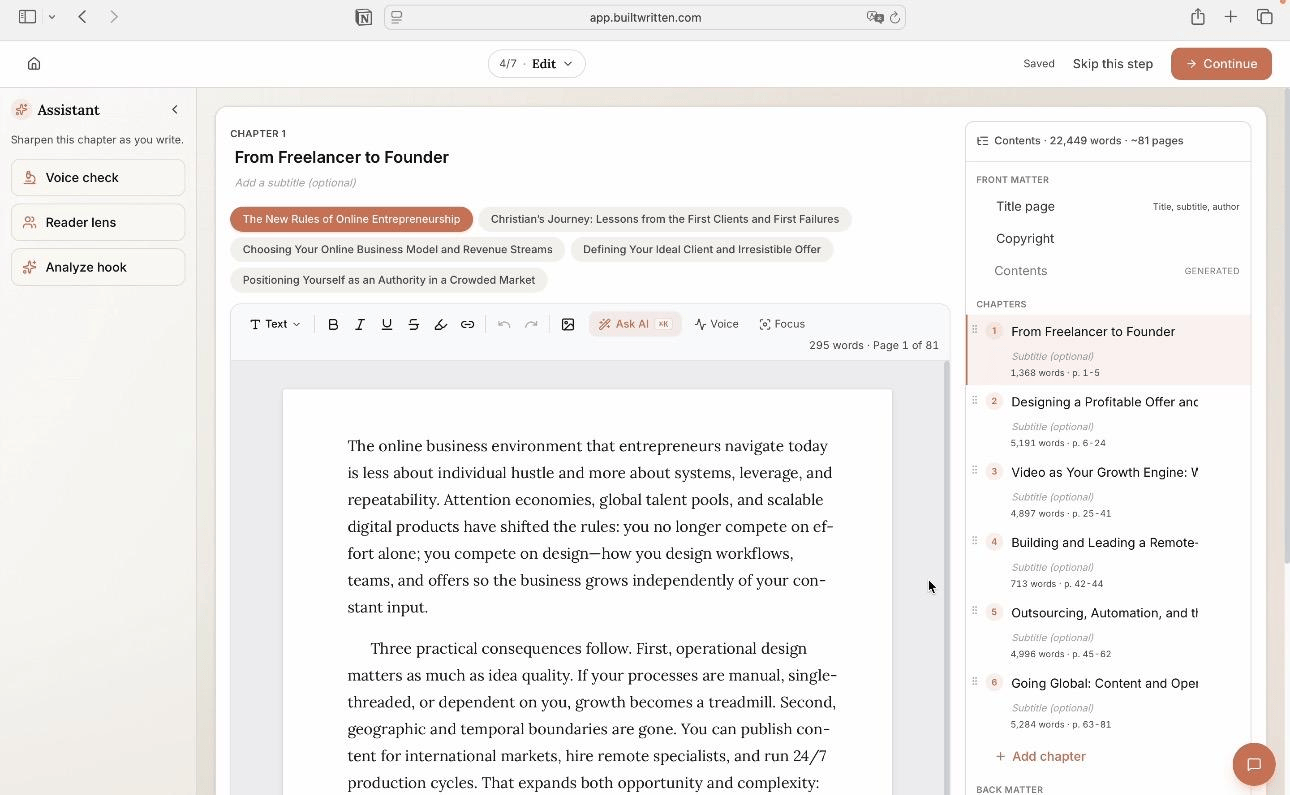
Most founders, consultants, and experts searching for a cover already have the book's content, just not the book. It sits in LinkedIn posts, talk transcripts, client notes, and half-finished drafts. That is the starting point Built&Written is designed for, with the cover as one of the last steps, not the first.
Here is what happens to your material inside it:
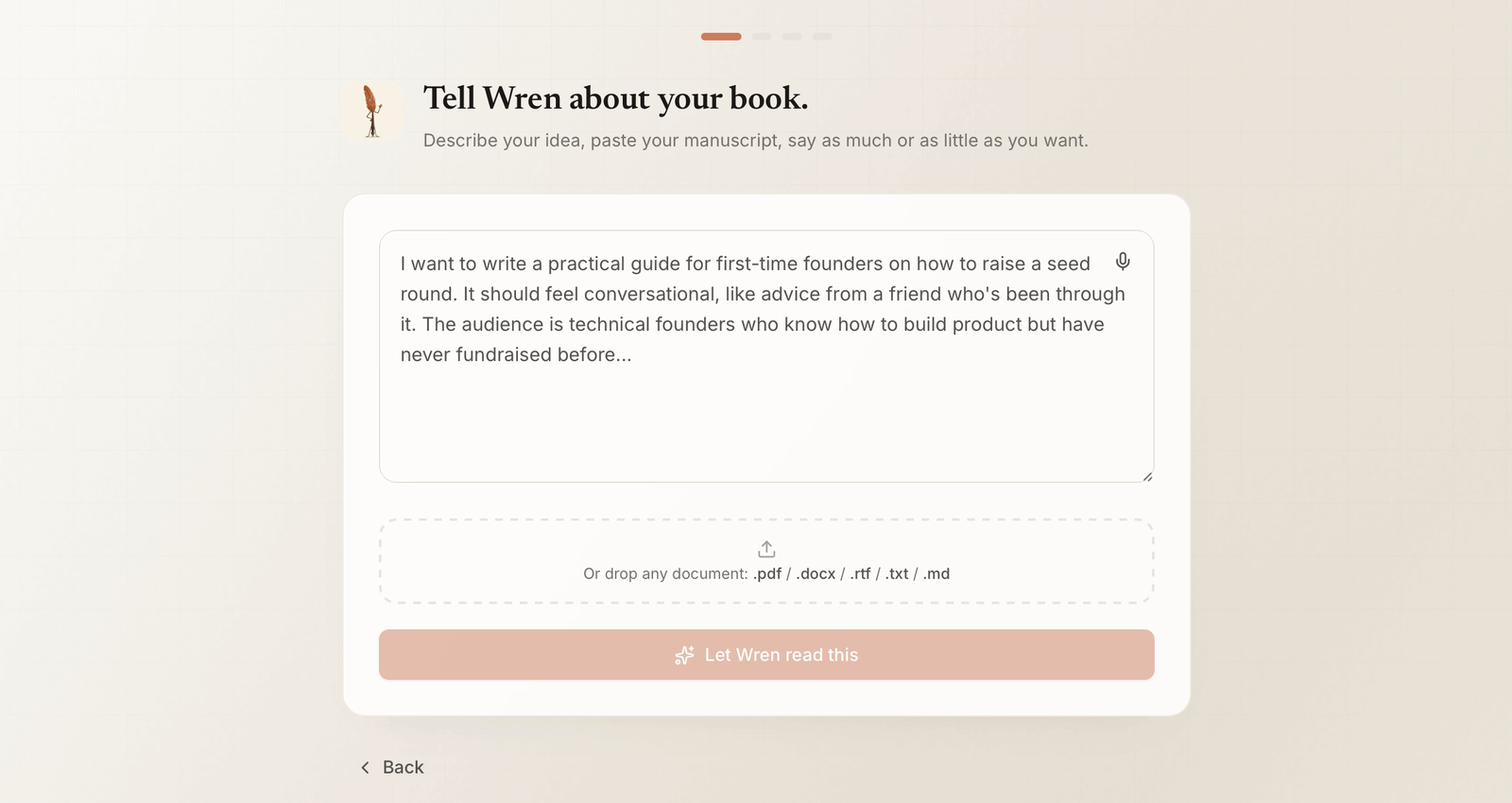
- 1. Bring what you have. Paste posts, transcripts, notes, or outlines, or upload a PDF, DOCX, RTF, TXT, or MD file. No reformatting first.
- 2. Voice DNA learns how you write. Voice DNA reads 5 to 50 pages of your existing writing for sentence rhythm, vocabulary, and habits, so new chapters sound like you rather than like generic AI.
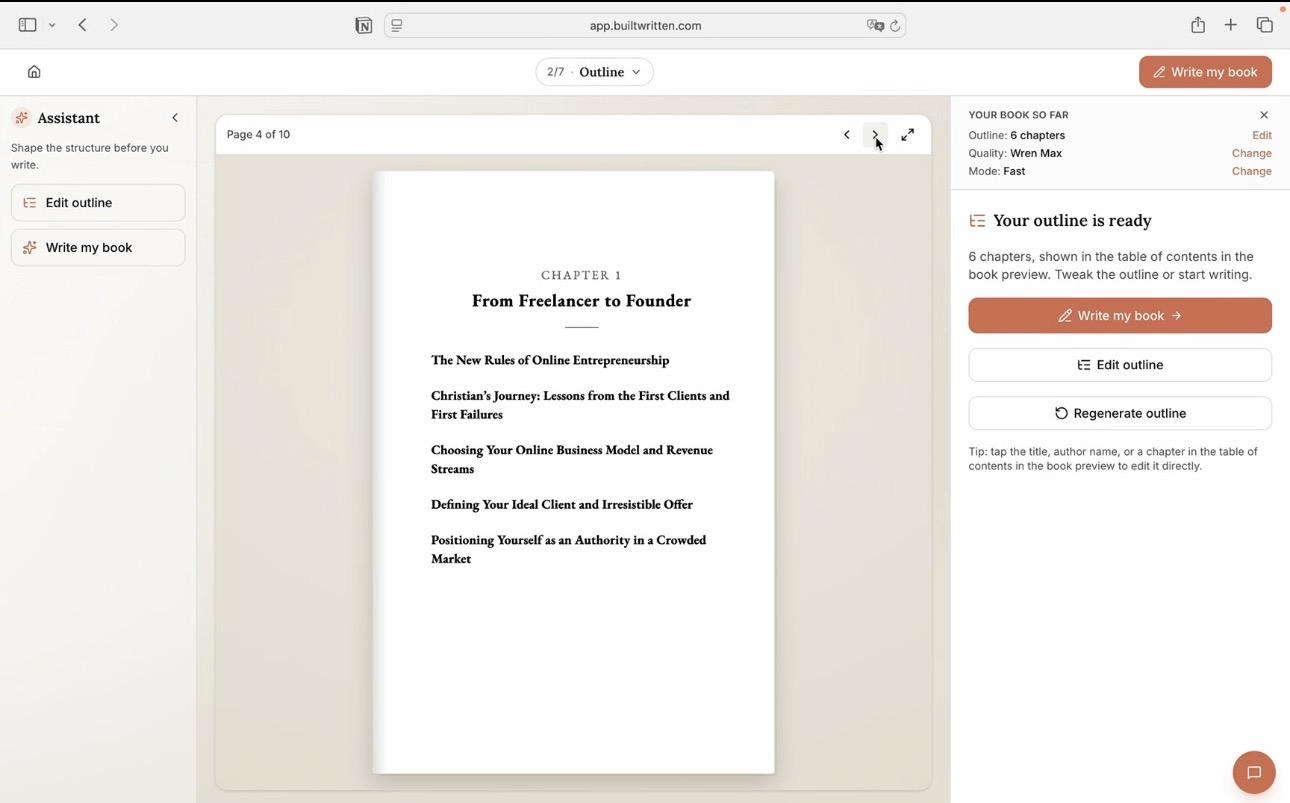
- 3. A chapter outline built from your ideas. Built&Written groups your material into a book structure. You reorder, rename, or delete chapters before any drafting starts.
- 4. The manuscript, chapter by chapter. Chapters are drafted in your voice from your material. Where a chapter has too little behind it, it flags the gap for you to fill instead of padding it. Every chapter stays editable, and you can regenerate one without restarting the book.
- 5. Formatting for print. KDP trim sizes such as 6 x 9, KDP-safe margins, gutters, page numbers, chapters starting on right-hand pages, and widow and orphan control.
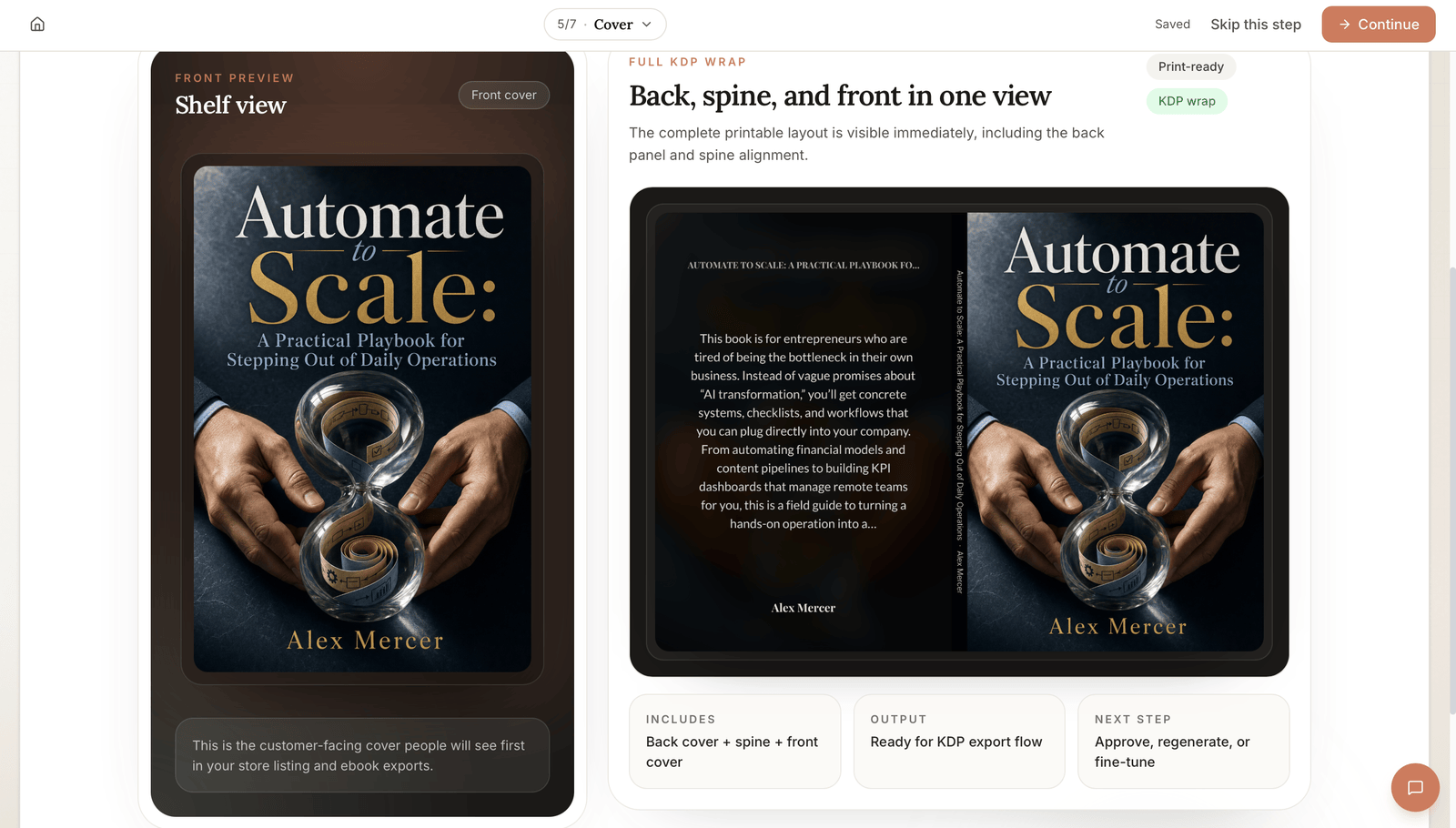
- 6. The cover, from the real page count. The editor already knows how many pages the book runs to, so the cover wrap's spine width is calculated from that count. It is the number we had to work out and type into Canva by hand.
- 7. Export. Interior PDF, cover wrap, ePub for Kindle, and DOCX, depending on your plan.
Say you have 40 LinkedIn posts, transcripts of three client workshops, and a notes file of your frameworks. Done by hand, that is five jobs: turn posts into chapters, edit, format for print, work out the spine, and design a cover to that size. In Built&Written it is one project, and the cover at step 6 is sized to the book those posts became.
The AI book cover generator also works on its own, from your title and a line about the book. You can preview it free; the print PDF and ebook JPG download on the Entrepreneur plan and up.
Final thoughts
Canva can make a KDP paperback cover that is the right size, with vector text and embedded fonts, on a free account. The two things that decide it are the custom size, which must be the full wrap including spine and bleed, and one checkbox: leave “Crop marks and bleed” off when your size already includes bleed.
Before you upload, run the PDF through the KDP cover validator, then compare the page size with KDP's cover calculator for your final page count yourself, because the validator does not check size. Then order a printed proof. And if the manuscript is not finished yet, start there: in Built&Written, your posts, notes, and talks become the book first, and the cover is sized to it at the end.
Frequently asked questions
Yes. Canva can produce a KDP paperback cover PDF at the exact size KDP needs. Set a custom size equal to the full wrap from KDP's cover calculator, export PDF with the Print preset, and leave Crop marks and bleed off. Check the file with a cover validator, confirm the page size yourself, and order a printed proof.
The free plan was enough for our test: custom size, PDF with the Print preset, and embedded fonts. CMYK export and Pro elements need a paid plan; Canva Pro was US$144 a year for one person on September 27, 2026. Canva's licence lets you sell a book whose cover you designed in Canva, with conditions.
The full wrap, not the trim size: bleed + back + spine + front + bleed wide, and trim height plus 0.25 inches tall. For a 6 x 9 book with 180 pages on white paper, that is 12.655 x 9.25 inches. The spine changes with page count, so use KDP's cover calculator or a spine width calculator for your book.
KDP accepts a single-page PDF at the right dimensions, and a Canva PDF can be one. In our test, the Print export with crop marks off matched KDP's size exactly. The export with Crop marks and bleed on came out 0.47 inches too big in both directions and included crop marks, which KDP asks you to remove.
Start with the manuscript, not the cover, because the cover size depends on the final page count. If your ideas already exist as posts, notes, or talk transcripts, Built&Written turns them into a chapter outline and a manuscript in your voice, formats it for KDP, and sizes the cover to the finished book.
The ebook cover is a separate front-only image. KDP's ideal is 1,600 x 2,560 pixels, exported as JPG or TIFF in RGB. Canva can export JPG at that size; our validator's Ebook Cover tab checks it.
Sources & References
About the author

Khrystyna Balushka
More in Book Design
Ready to write your book?
Turn your expertise into a professional book with Built&Written.