

How to Check Your Book in Kindle Previewer Before You Hit Publish
Key takeaways
- Kindle Previewer is Amazon's free app for checking an ebook before you publish it on KDP. Version 4 is current; version 3 is no longer supported.
- It catches technical faults such as broken contents links, missing images, and dead web links.
- It does not check how your book is built. Our badly formatted DOCX passed with 0 errors, yet the preview showed it had no table of contents.
- So the real work comes first: chapters, headings, contents page, and page breaks must be right in the manuscript.
This guide is for first-time authors: what Kindle Previewer is, how to use it, what it checks, what it misses, and what to do before you publish. All results come from our own test on October 8, 2026.
1. What Is Kindle Previewer?
Kindle Previewer is a free Amazon app for Windows and Mac. You open your book file in it and see how the book will look on Kindle tablets, phones, and e-readers, plus a report of errors that could block publishing. Amazon's guide to ebook file formats recommends checking your file in it before upload.
Terms used in this guide:
- KDP (Kindle Direct Publishing): Amazon's site for uploading and selling your book. Our step-by-step KDP guide covers the full process.
- EPUB: the standard ebook file. DOCX: a Word document. KPF: the file Amazon's Kindle Create app saves.
- Reflowable ebook: an ebook without fixed pages. Text rewraps to fit each screen and font size.
- Table of contents: the clickable chapter list at the start of the book. It also feeds the chapter menu readers use to jump around.
2. How We Tested Kindle Previewer
On October 8, 2026, we installed Kindle Previewer 4.0.3 on a MacBook Air and tested four files:
- An EPUB and a DOCX of a nine-chapter business book exported from Built&Written.
- A broken copy of that EPUB, with a contents link to a missing chapter, a link to a missing spot in the text, a dead web link, and a missing image.
- A DOCX formatted by hand, the way many first drafts are: a typed contents page, chapter titles that were only bold and large, and 25 empty lines between chapters.
3. How to Download Kindle Previewer (Mac and Windows)
Get it only from Amazon's Kindle Previewer page on KDP. It runs on Windows 10 (64-bit) or later and on Intel or Apple Silicon Macs with macOS 12 or later, and needs 1.5 GB of free disk space.
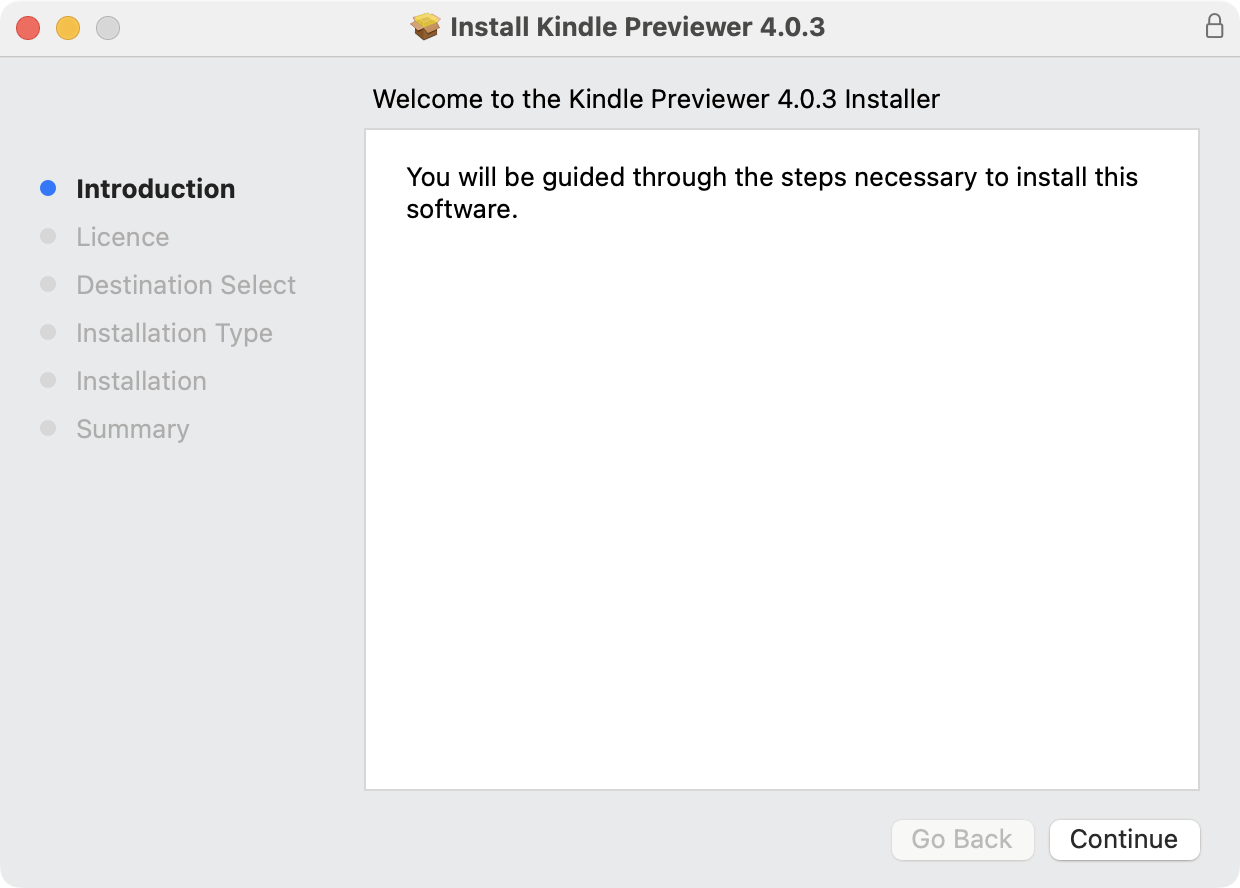
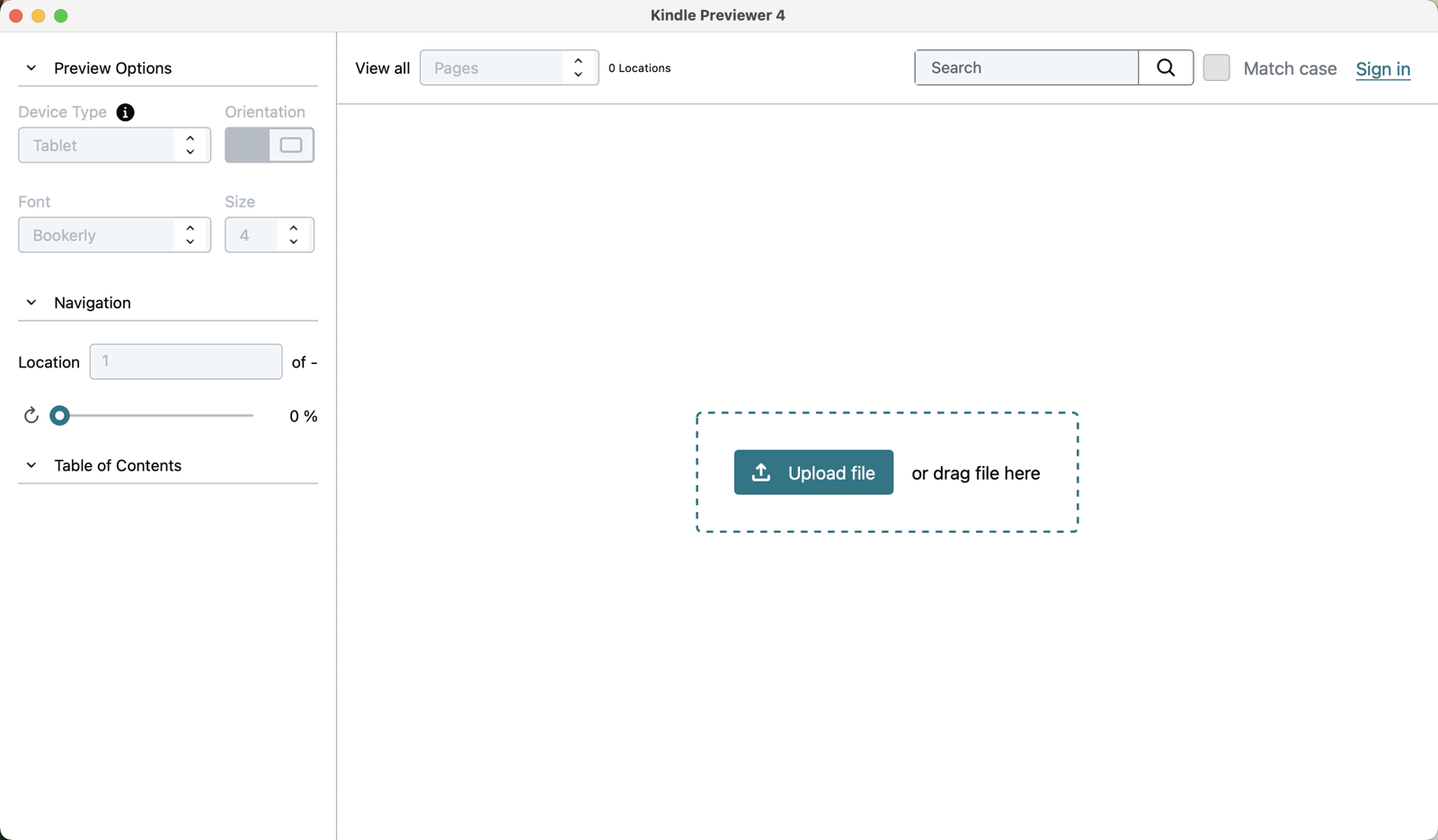
Looking for Kindle Previewer 3? Amazon now says version 3 and older are no longer supported, so skip old builds on third-party sites. Installing takes about a minute, and the app opens to one button: Upload file.
4. How to Use Kindle Previewer, Step by Step
Previewer opens EPUB, DOC, DOCX, KPF, HTML, and OPF files (Word files for English-language books only). Our routine:
- 1. Open the file. Click Upload file. Previewer converts it the way KDP will; each of our files took under a minute.
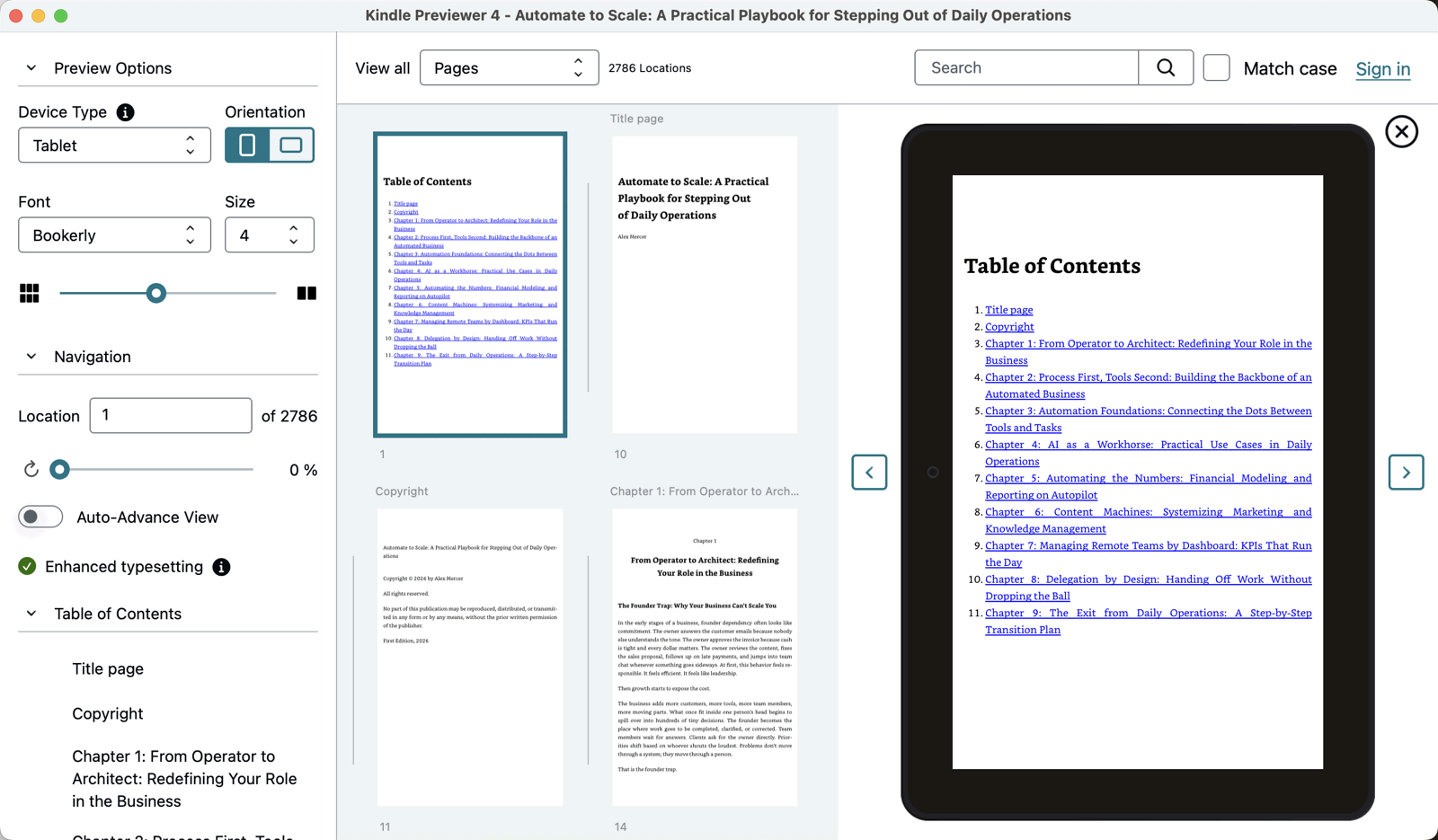
- 2. Look for the green Enhanced Typesetting check. It means Amazon's improved layout, such as better hyphenation and spacing, is on. Amazon's Enhanced Typesetting page lists the features.
- 3. Check the Table of Contents panel. Each chapter should be its own line. An empty panel means readers get no chapter menu.
- 4. Switch Device Type between Tablet, Phone, and Kindle E-reader, and raise the font size. On a phone, long titles wrap badly; on the black-and-white e-reader, color charts lose meaning.
- 5. Turn on Auto-Advance View to flip through every page. Watch for chapters starting mid-screen, blank screens, and tiny images.
- 6. Read the detailed log, fix errors in your original manuscript, export again, and recheck.
5. What Kindle Previewer Checks
Previewer is good at finding technical faults that stop a file from converting cleanly:
| File | Enhanced Typesetting | Conversion log | Quality checks |
|---|---|---|---|
| Built&Written EPUB | Supported | 0 errors, 1 notice: cover not specified | No issues found |
| Built&Written DOCX | Supported | 0 errors, 0 notices | Not run |
| Broken EPUB | Supported | 2 errors: contents link not resolved, table of contents could not be built. Notices: image file not found, links not resolved | 1 issue: invalid external link |
| Hand-formatted DOCX | Supported | 0 errors, 0 notices | No issues found |
Kindle Previewer 4.0.3 log files, October 8, 2026.
On the broken EPUB it found every fault we planted, including the dead web link once we switched on its quality checks option. The one notice on our clean EPUB, "Cover not specified", is normal: KDP takes the cover as a separate upload, which you can test with our KDP cover validator.
Read the detailed log, not the summary
For the broken EPUB, the summary file said Success with 0 errors, while the detailed log listed two errors that "will block the book from publishing". The missing image was only a notice, which Amazon calls safe to ignore, though a reader would see an empty space. Always open the detailed log.
6. What Kindle Previewer Does Not Catch
Previewer checks whether a file is technically valid. It does not check whether your book is built correctly.
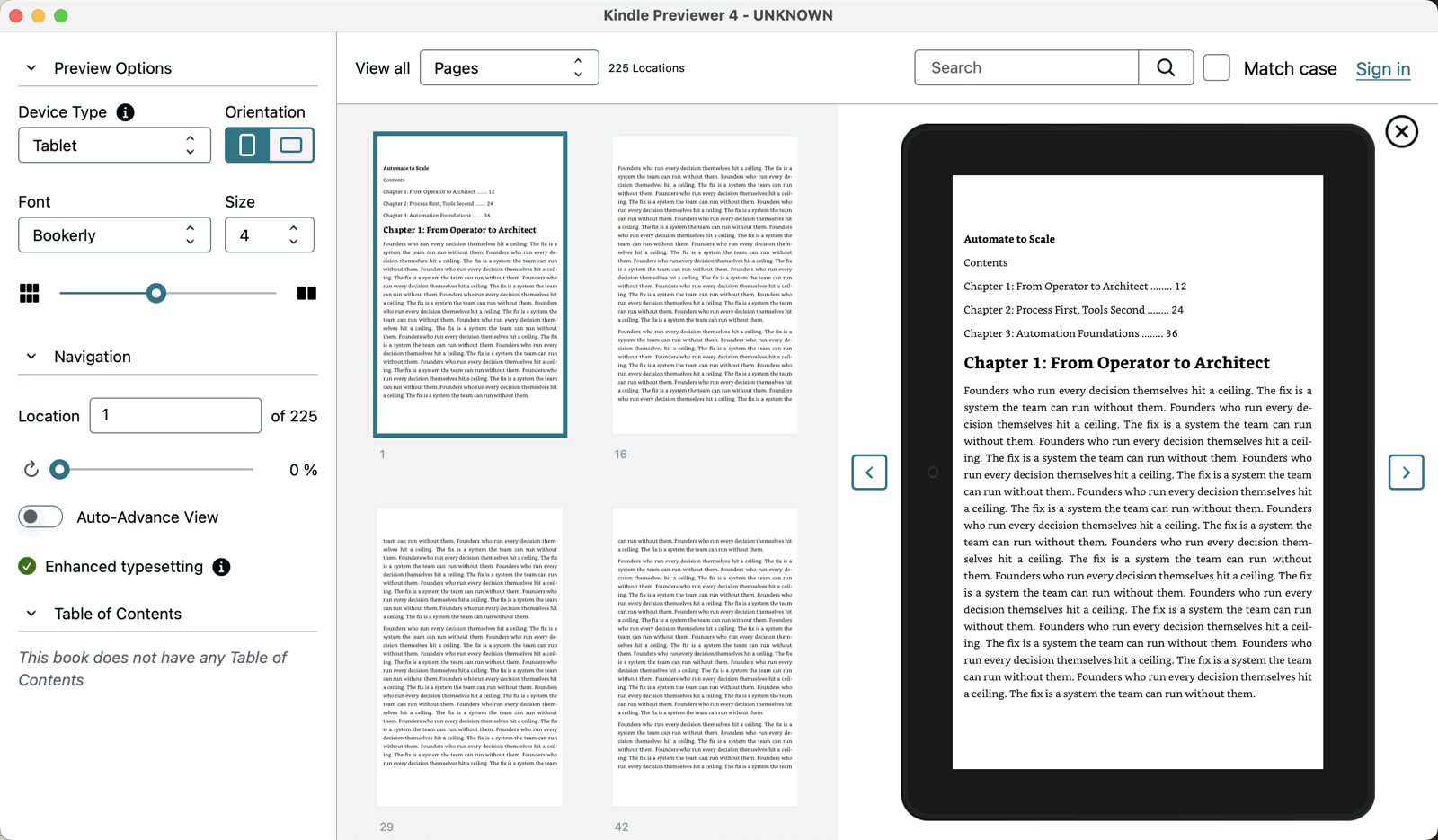
A file can pass with 0 errors and still have no table of contents
Our hand-formatted DOCX, with a typed contents page, fake headings, and 25 empty lines between chapters, got 0 errors, 0 notices, and "No issues found".
Then we opened it in the app. The Table of Contents panel said: "This book does not have any Table of Contents." The typed contents page showed page numbers like "........ 12", which mean nothing on a Kindle, and Chapter 1 started on the same screen. The automatic check passed a book that its own preview showed had no chapter menu.
Problems you have to find yourself
- Fake headings. Bold, large text only looks like a chapter title. Kindle builds the chapter menu from heading styles (in Word, Heading 1).
- A typed table of contents. It has no links, and its page numbers are wrong on every screen.
- Empty lines instead of page breaks. Pressing Enter does not start a new page, so chapters can begin mid-screen. See page breaks that survive publishing.
- Order and spacing. Previewer will not flag a misplaced title page or amateur spacing. See our explainers on title pages and typesetting.
7. How to Fix These Problems in Word and Google Docs
Previewer cannot fix anything. Every fix happens in your manuscript:
- Headings: apply Heading 1 to each chapter title (Home tab in Word; the Normal text menu in Google Docs).
- Table of contents: delete the typed list and insert a generated one: References, then Table of Contents in Word; Insert, then Table of contents (with links) in Google Docs.
- Page breaks: delete the empty lines and insert a page break before each chapter: Insert, then Page Break in Word; Insert, then Break, then Page break in Google Docs.
- Recheck: export, open in Previewer, read the log, page through all three devices.
Our guide to formatting a book for Kindle covers the rest. Add it up and the structure is hours of manual work, and none of it is something Previewer checks for you.
8. Creating, Formatting, and Checking Are Three Different Jobs
Much of the confusion comes from expecting one tool to do all three:
- Creating: turning your ideas into chapters with real headings, a linked contents page, and page breaks. The problems in section 6 start here.
- Formatting: making the pages look right, in Kindle Create, Word, or a formatting app.
- Checking: Kindle Previewer, then KDP's online previewer before you publish.
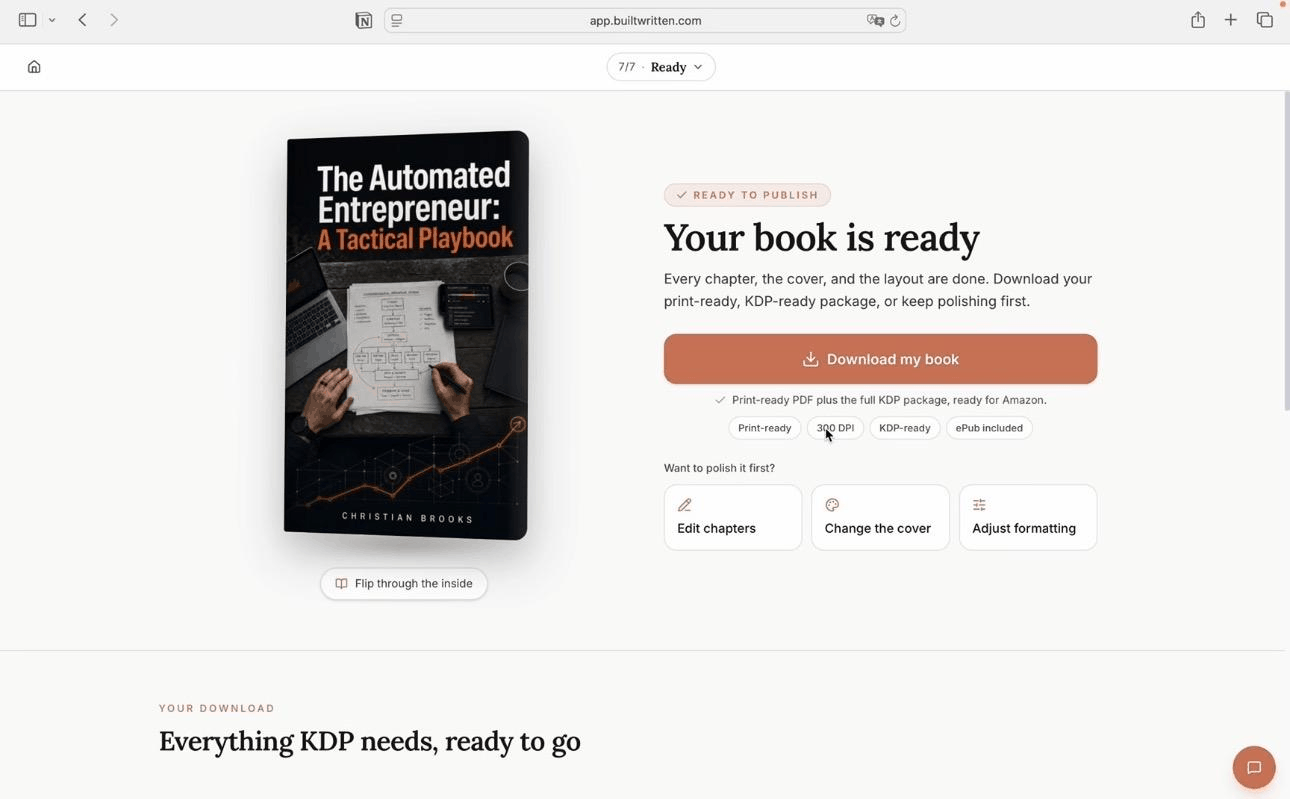
Built&Written works at the first step. It builds a structured nonfiction book from material you already have, such as notes, LinkedIn posts, or call transcripts, and keeps it in your voice with Voice DNA. Chapters are set up in the editor, so the DOCX export carries Heading 1 chapter titles and page breaks, and the EPUB carries a linked table of contents. Both of our Built&Written files passed Previewer with 0 errors. You still check the book, but you are checking one that had chapters and headings from the start.
Kindle Previewer vs Kindle Create vs KDP's online previewer
- Kindle Previewer (desktop): checks a finished EPUB, DOCX, or KPF on three device types, with logs. It cannot edit.
- Kindle Create (desktop): Amazon's free formatting tool. It saves a KPF that only works on Amazon; our Kindle Create review explains when that matters.
- KDP online previewer (browser): opens after you upload on KDP, with the same basic views and fewer options. Use it for a last look at the exact file KDP converted.
9. What to Do Before You Publish Your Book on KDP
In order:
- Chapter titles use a heading style, the contents page is generated with links, and each chapter starts after a page break.
- Export EPUB or DOCX. You can also send the EPUB to your own Kindle to read it on a real device.
- In Previewer: green Enhanced Typesetting check, every chapter in the Table of Contents panel, 0 errors in the detailed log.
- Page through Tablet, Phone, and E-reader views, also at a larger font size.
- Check your cover with the KDP cover validator; it uploads separately.
- After upload, one last look in KDP's online previewer.
Then avoid the classic launch errors in our list of first-time author mistakes on Amazon KDP.
Final thoughts
Kindle Previewer is worth installing. It is free and catches broken links, missing images, and contents errors before readers see them. But it checks a file that already exists: our hand-formatted DOCX passed every automatic test without a table of contents.
So the real question is how you get to a well-built file. You can set up headings, contents, and page breaks by hand and recheck until it works. Or you can start in a tool that builds the chapter structure for you, and use Previewer for the final check.
Frequently asked questions
A free Amazon desktop app that converts your ebook file the way KDP does and shows how it will look on Kindle tablets, phones, and e-readers. It also lists errors that could block publishing.
Yes. Download it from Amazon's KDP help page. It runs on Windows 10 (64-bit) or later and macOS 12 or later.
EPUB, DOC, DOCX, KPF, HTML, and OPF. Word files are supported for English-language books only.
Structural mistakes. In our test, a DOCX with a typed table of contents, fake headings, and empty lines instead of page breaks passed with 0 errors, even though the preview showed it had no table of contents.
It is optional but worth it. KDP has a simpler online previewer after upload, while the desktop app gives you more device views, filters, and a detailed error log before you upload.
Kindle Create formats a Word file into a Kindle book. Kindle Previewer only checks a finished file. If your book is already an EPUB or DOCX, you need Previewer.
Sources & References
About the author

Khrystyna Balushka
More in KDP Publishing
Ready to write your book?
Turn your expertise into a professional book with Built&Written.