

Amazon Author Central: Set Up Your Author Page Right
Key takeaways
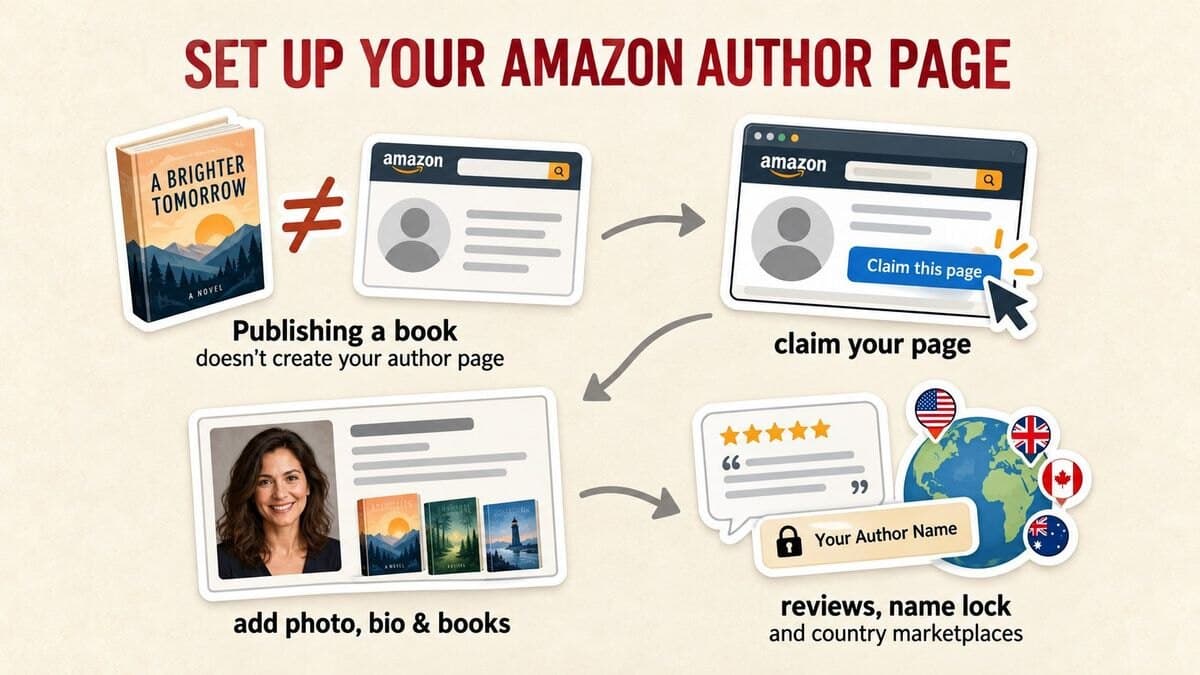
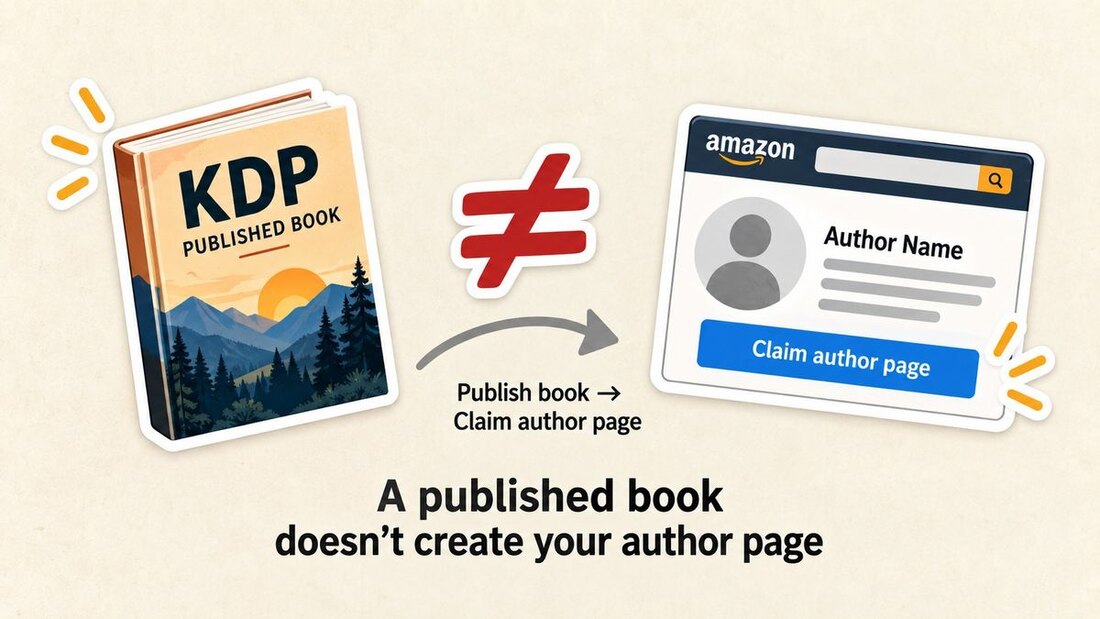
- Author Central is a separate sign-in from KDP, at author.amazon.com, and you need at least one live book to activate an account. Publishing on KDP doesn't create the page for you.
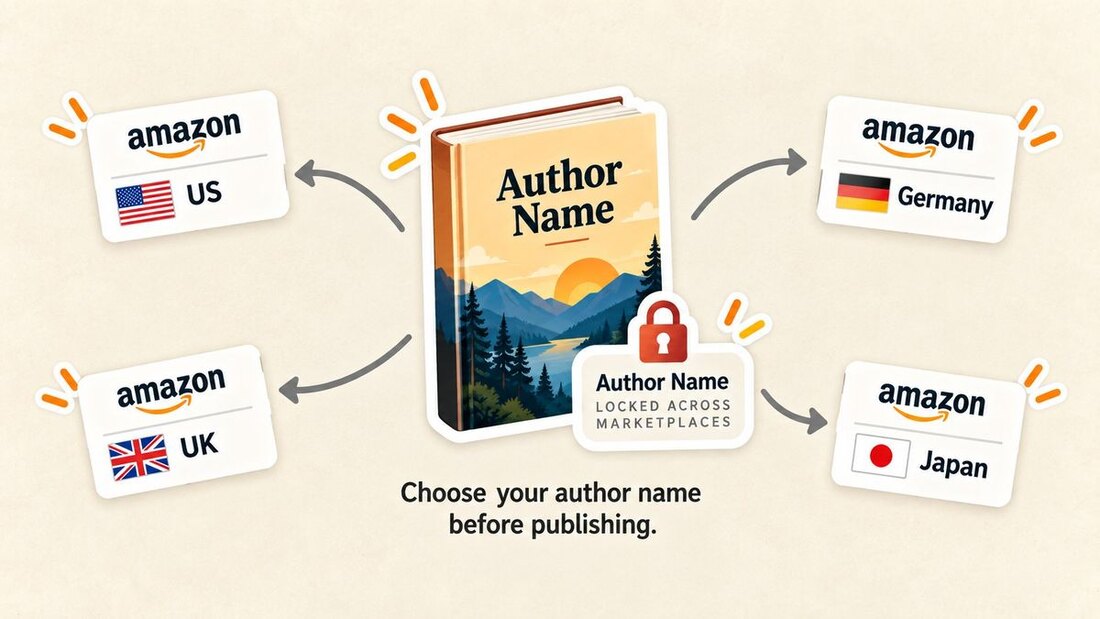
- The author name you claim under can't be edited once that book is published. Editorial reviews go on the book page, not the bio, added yourself with no approval step.
- Author Central runs separately per country: six marketplaces (US, UK, Germany, France, Japan, Brazil) are fully editable; roughly nine others just mirror your US profile.
About Built&Written: Built&Written's AI assistant, Wren, turns your notes, call transcripts, or old posts into a structured, KDP-ready manuscript, front matter included, written in your own voice through Voice DNA rather than a generic AI one. The same manuscript exports as a formatted PDF, EPUB, and DOCX, so there's no separate formatting pass before you publish. See current plans if you're weighing your options.
1. What Author Central Actually Is (and Why KDP Doesn't Set It Up for You)
Author Central is Amazon's free author profile tool: bio, headshot, book list, and a custom vanity URL, sitting on top of your existing Amazon book pages. It's not part of KDP. KDP is where you publish and get paid; Author Central is where you build the page a reader lands on after searching your name.
Most first-time authors assume publishing on KDP automatically produces an author page. It doesn't. Until you claim it, your name on Amazon is just text on a listing: no photo, no bio, no link to your other titles, which reads as someone who published once and never came back.
2. Claiming Your Author Page: Step by Step
Five steps take you from no page to a live one:
- Go to author.amazon.com and select "Join Now." A separate account flow from KDP, though you'll usually sign in with the same credentials.
- Sign in with your KDP account if you self-published, or a regular Amazon account for a traditionally published book.
- Enter your author name exactly as it appears on the book, then search by ISBN, ASIN, or name to claim the title.
- Confirm authorship, matching the name on your account to the name on the book.
- Build out the profile: bio, photo, and a custom URL for your site, email, or LinkedIn.
Tip: An account with zero claimed books stays inactive: no book claimed means no live page for anyone to find.
3. The One Field You Can't Fix Later: Your Author Name
The author name on a book can't be edited once it's live, on paperback, hardcover, and ebook alike. Decide between your full name, a shortened version, or a pen name before you hit publish, not after.
Author Central does support more than one pen name per account, generally up to three before Amazon asks for a second account under a different email, so a mix-up there isn't fatal. A typo in your published name is a different problem, and one you're stuck with on that edition.
If a book doesn't turn up when you search by ISBN or ASIN, the usual cause is a name mismatch between your account and what's printed on the book. Recheck the exact spelling and any middle initial first.
4. Your Author Photo and Bio: Positioning, Not Vanity
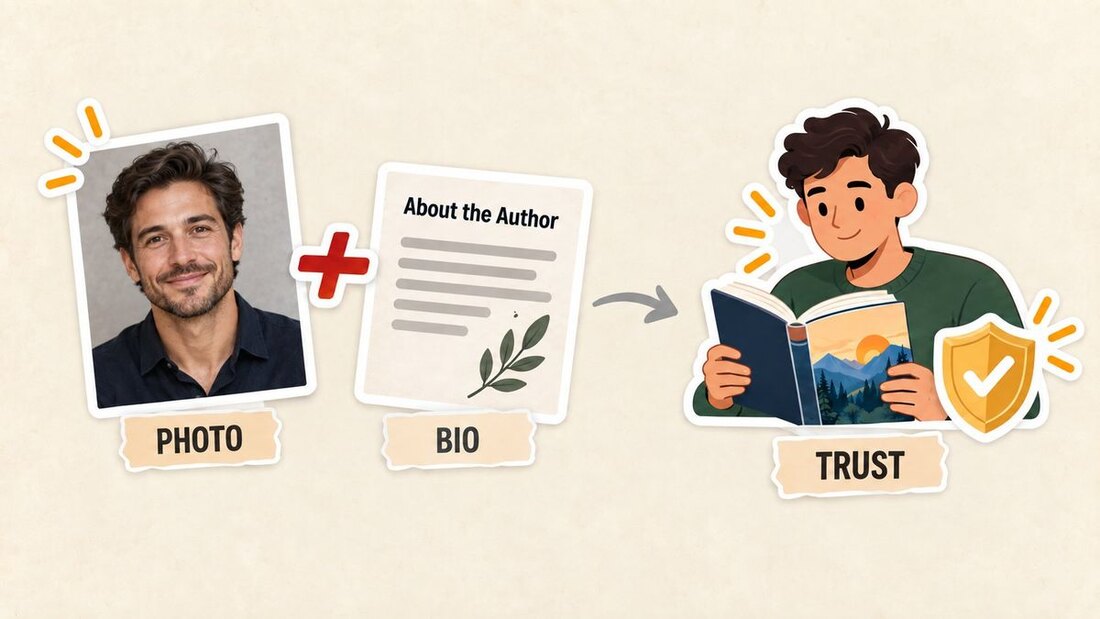
For the audience actually setting this up, a founder, a consultant, an operator with a book out, the photo and bio aren't there to look good. They answer one question fast: why should I trust what this person wrote?
Photo: a clear, current, professional headshot, not a logo, a group photo, or the picture you use everywhere else by default. It should look like the person a client would take a call with.
Bio: lead with the credential or result that makes the book worth reading, not a chronological résumé. Two or three sentences beat a paragraph that reads like a LinkedIn "About" section, with one link out.
This is also where your book's own front matter pays off twice. A tight about-the-author section in your manuscript's back matter, trimmed down, is usually the fastest starting point for this bio, instead of writing author positioning from scratch a second time.
5. Adding Editorial Reviews and Linking Every Book
Editorial reviews live on the individual book page, not your author bio, and they're one of the more underused parts of Author Central. To add one: open Books, select the title, and look for the Editorial Reviews section near the book description. No Amazon approval is required; you paste the quote, attribute it, and save.
Amazon caps how many display by format (one for Kindle, five for print, three for audiobook), so pick your strongest three or four. Changes aren't instant either: a new review can take under an hour or close to three days to appear.
Linking your books works the same way each time: any title published under the exact name you claimed should surface when you search for it. If your name varies between books, search under each variant, since Author Central matches on the name string, not on you as a person.
Before you paste a book description or editorial quote live, our free book description scorer gives it a quick clarity and hook-strength check.
Tip: Get permission before quoting anyone as an editorial review, and favor quotes that name what the book actually changed for the reader over a generic "great read."
6. The Marketplace Gotcha: One Page Doesn't Cover Every Country
This is the part that catches almost everyone off guard: Author Central isn't one global profile. It runs as separate accounts by country, each with its own login and editable version:
| Marketplace | Author Central site | Fully editable? |
|---|---|---|
| United States | author.amazon.com | Yes |
| United Kingdom | author.amazon.co.uk | Yes |
| Germany | author.amazon.de | Yes |
| France | author.amazon.fr | Yes |
| Japan | author.amazon.co.jp | Yes |
| Brazil | author.amazon.com.br | Yes |
| Everywhere else Amazon sells books | (mirrors your US page) | No, auto-copied from US |
The catch: If you sell in the US and UK, your bio, photo, and editorial reviews don't automatically match unless you update both separately. Roughly nine other marketplaces beyond the core six just mirror your US profile and can't be edited on their own. Editorial reviews specifically have been reported as US-only, so a review missing on a non-US listing may just be that.
7. How Built&Written Fits In
Most of the friction in setting up Author Central isn't the form fields. It's not having tight, ready-to-paste copy for the bio and the about-the-author section when you sit down to fill it in.
Built&Written's AI assistant, Wren, structures your existing notes and transcripts into a finished manuscript, front matter included, like the about-the-author page authors tend to leave for last. Write that section once, in your own voice through Voice DNA, and you already have the raw material for your Author Central bio. The manuscript then exports as a KDP-ready PDF, EPUB, and DOCX, the file you're claiming on Author Central in the first place.
- Front matter built in, not bolted on. Your about-the-author section, bio, and book description are structured as part of writing the manuscript, so the copy your Author Central page needs already exists instead of getting written from scratch after the fact.
- Your own voice, not a generic AI one. Voice DNA keeps the bio and book copy sounding like you, the same thing Author Central's photo and bio are there to establish.
- One file, every format. The same manuscript exports as a print-ready PDF, an EPUB, and a DOCX, so the KDP file and the Author Central bio come from a single pass, not separate cleanup work.
Pricing: Plans start at $19/month, with a 7-day refund window if it's not the right fit. See current plans.
The short version: claim your page at author.amazon.com with a matching author name, add a real photo and a tight bio, and check what it looks like outside the US if you sell there too.
Final thoughts
None of this happens automatically once a book goes live: a real photo, a bio that earns trust fast, editorial reviews with real permission behind them, and an honest check of what the page looks like outside the US. It takes twenty minutes to claim and longer to get right, but it's free, entirely in your control, and mostly a light update after that, not a rebuild, every time a new book comes out.
Frequently asked questions
Go to author.amazon.com and sign in with your KDP account if you self-published, or a regular Amazon account if a publisher put your book out. It's a separate login from KDP, not a tab inside it.
You can't, not on a book that's already published: the author name field locks once that edition is live, across paperback, hardcover, and ebook. Decide on your name, including whether you're using a pen name, before you publish, not after.
Search for it by ISBN, ASIN, or your author name from inside Author Central and confirm authorship. If it doesn't turn up, double-check that the name on your account matches the name printed on the book exactly, including middle initials, since that's the most common reason a claim search comes up empty.
Yes. There's no charge to claim or maintain an author page; the only requirement is having at least one published book to claim.
The book page. Editorial reviews are added per title, under that book's Editorial Reviews section, separate from the author bio that appears on your overall profile.
Sources & References
About the author

Khrystyna Balushka
More in KDP Publishing
Ready to write your book?
Turn your expertise into a professional book with Built&Written.