
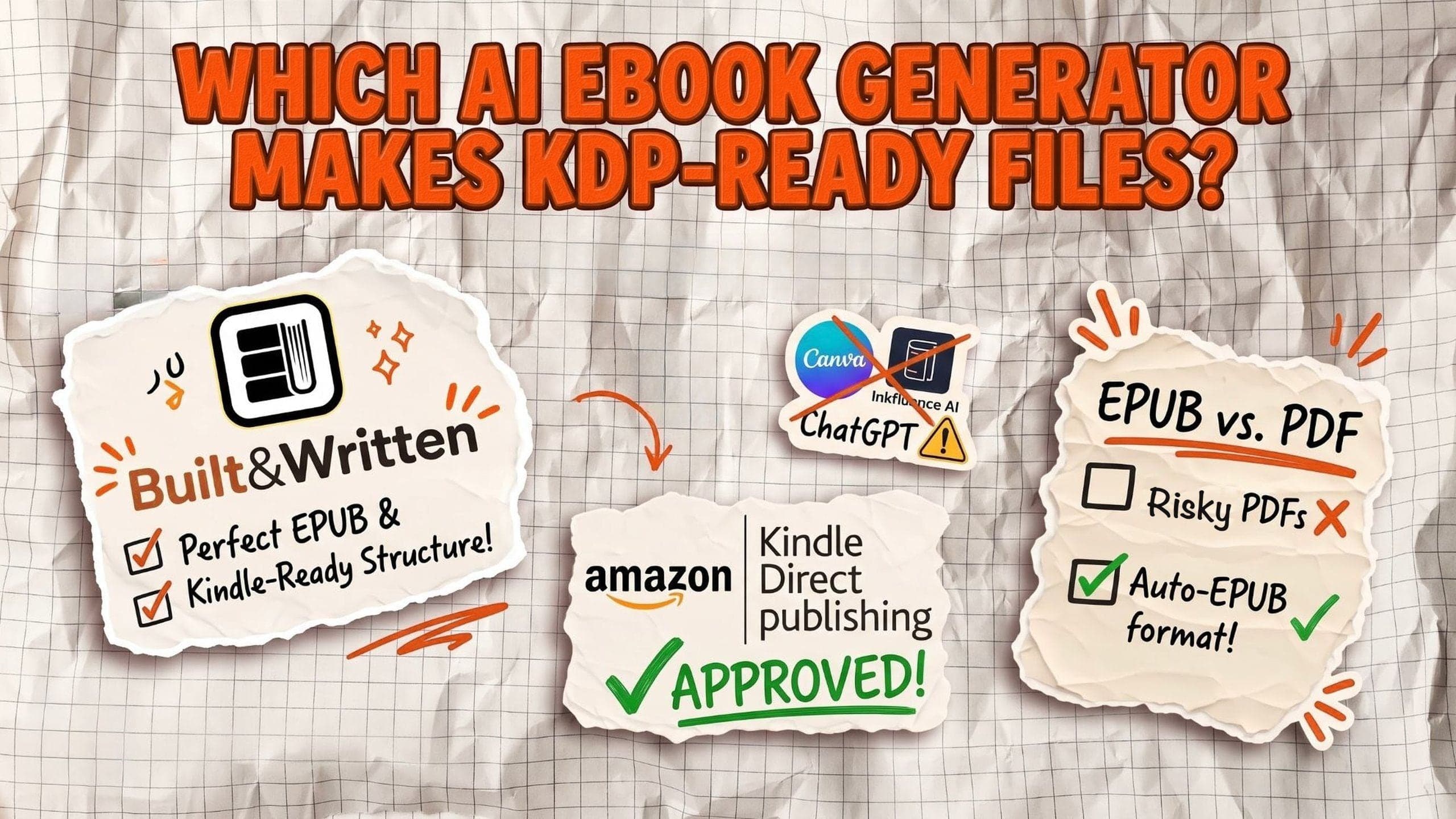

Which AI Ebook Generator Makes a File KDP Will Actually Accept?
Key takeaways
- What did we test? We uploaded four ebook files made from the same notes to a draft Kindle ebook in our own KDP account on November 1, 2026, and read what KDP said about each one.
- Which file passed cleanly? The Built&Written EPUB: no warnings, no spelling issues, chapters clickable in the Kindle menu.
- Does KDP accept a PDF? Yes, but it warns you first. Our Inkfluence AI PDF came out with broken words such as "Scienti c" and 8 spelling flags.
- What about Canva? Its PDF converted cleanly, but the Kindle menu had no chapters to jump to.
- And ChatGPT? It wrote the text but said it could not attach a file. When we pasted the text into Word ourselves, KDP flagged a missing table of contents.
What Kindle ebook format does KDP accept?
KDP (Kindle Direct Publishing) is Amazon's free service for selling your book on Amazon. For a Kindle ebook, its list of supported formats recommends three kinds of file:
- EPUB: the standard ebook file. The text reflows, which means it adjusts to any screen and any font size.
- Word (DOC or DOCX): most Word files convert well, KDP says, but complex formatting may not.
- KPF: the file Amazon's own free tool, Kindle Create, makes.
PDF is on a second list of "additional accepted formats". A PDF is a fixed page made for print, so a phone or Kindle has to pull the text out of it and rebuild the book. That is where things go wrong.
One more thing matters on Kindle: the table of contents menu. It is the list a reader opens to jump to a chapter. KDP builds it from the chapter headings inside your file. If your file has none, the reader gets one entry: "Beginning". Our guide to EPUB, PDF and MOBI explains the file types in more detail.
How we tested four AI ebook generators on KDP
We used the files from our earlier test, where we gave four AI ebook generators the same notes: 2,131 words from the first chapter of Frederick Taylor's The Principles of Scientific Management (1911, free to reuse), with a request for a short client ebook.
From each tool we took the file you would actually get:
- Built&Written: the EPUB from a paid plan, because writing with AI and the EPUB download need one.
- Inkfluence AI: the PDF from the free plan. EPUB, Word and the KDP export are locked there.
- Canva: the PDF its Canva AI assistant made on a free account.
- ChatGPT: we asked for a Word file it could hand us. It answered that it had not been able to "generate and attach a verified DOCX file", so we pasted its text into Word ourselves, with a heading for each chapter.
On November 1, 2026 we created one draft Kindle ebook in our own KDP account, uploaded each file in turn, waited for KDP's checks, then opened KDP's online previewer. We never published the draft.
The results: which AI ebook generator for KDP passed?
KDP accepted all four files. The difference is what it said, and what a reader would see.
| Tool | File we got | What KDP said | Kindle chapter menu | Spelling flags |
|---|---|---|---|---|
| Built&Written | EPUB | "Well done! Your manuscript does not have spelling errors or image issues." | Title page, copyright and all 7 chapters | 0 |
| Inkfluence AI | PDF (free plan) | "Do you have another format?" warning, then "Your PDF file completed conversion" | "Beginning" only | 8 |
| Canva | "Do you have another format?" warning, then a clean check | "Beginning" only | 0 | |
| ChatGPT | No file; we pasted the text into Word | "Missing Table of Contents" warning | "Beginning" only | 0 |
Built&Written: the EPUB KDP took without a warning
Built&Written is a platform for writing and publishing nonfiction books. You paste or upload what you already have: notes, posts, talk transcripts or an old manuscript. Built&Written plans the book with you, and once you approve the outline, it writes the chapters in your voice. If your book is already written, you can upload it as it is and keep every word.
Then the platform lays out the pages, designs the cover, checks the book against KDP's rules and gives you the files to upload. You go from your first notes to a finished book in one place. Our test book came out at 67 pages and 7 chapters. Our page on the AI ebook generator shows the steps.
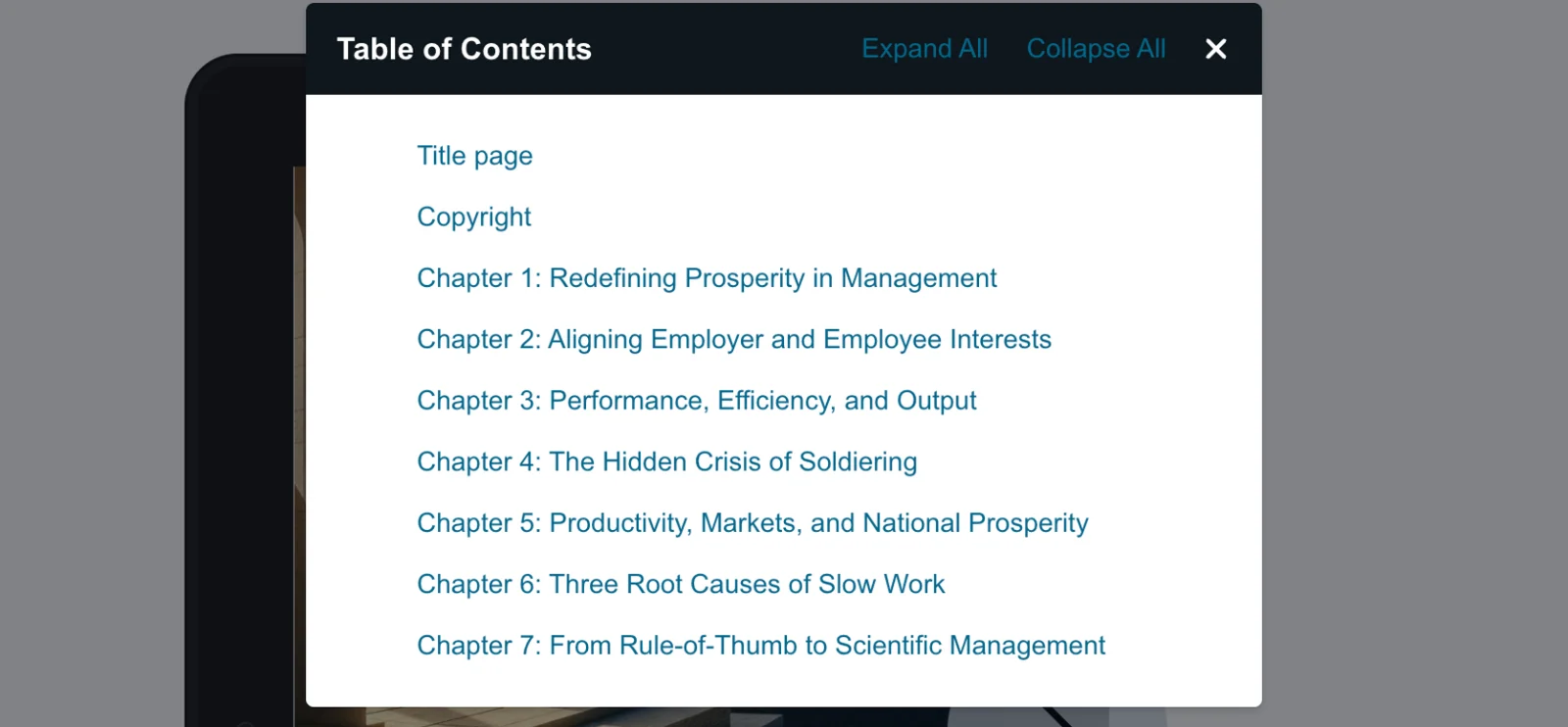
We uploaded its EPUB as it came out of the platform. KDP finished its check and showed one green line: no spelling errors, no image issues. In the previewer, the cover opened first, and the Kindle menu listed the title page, the copyright page and every chapter by name. A click on a chapter went straight to it.
Text in the image:
"Table of Contents. Expand All. Collapse All." Entries: "Title page", "Copyright", "Chapter 1: Redefining Prosperity in Management", "Chapter 2: Aligning Employer and Employee Interests", "Chapter 3: Performance, Efficiency, and Output", "Chapter 4: The Hidden Crisis of Soldiering", "Chapter 5: Productivity, Markets, and National Prosperity", "Chapter 6: Three Root Causes of Slow Work", "Chapter 7: From Rule-of-Thumb to Scientific Management".
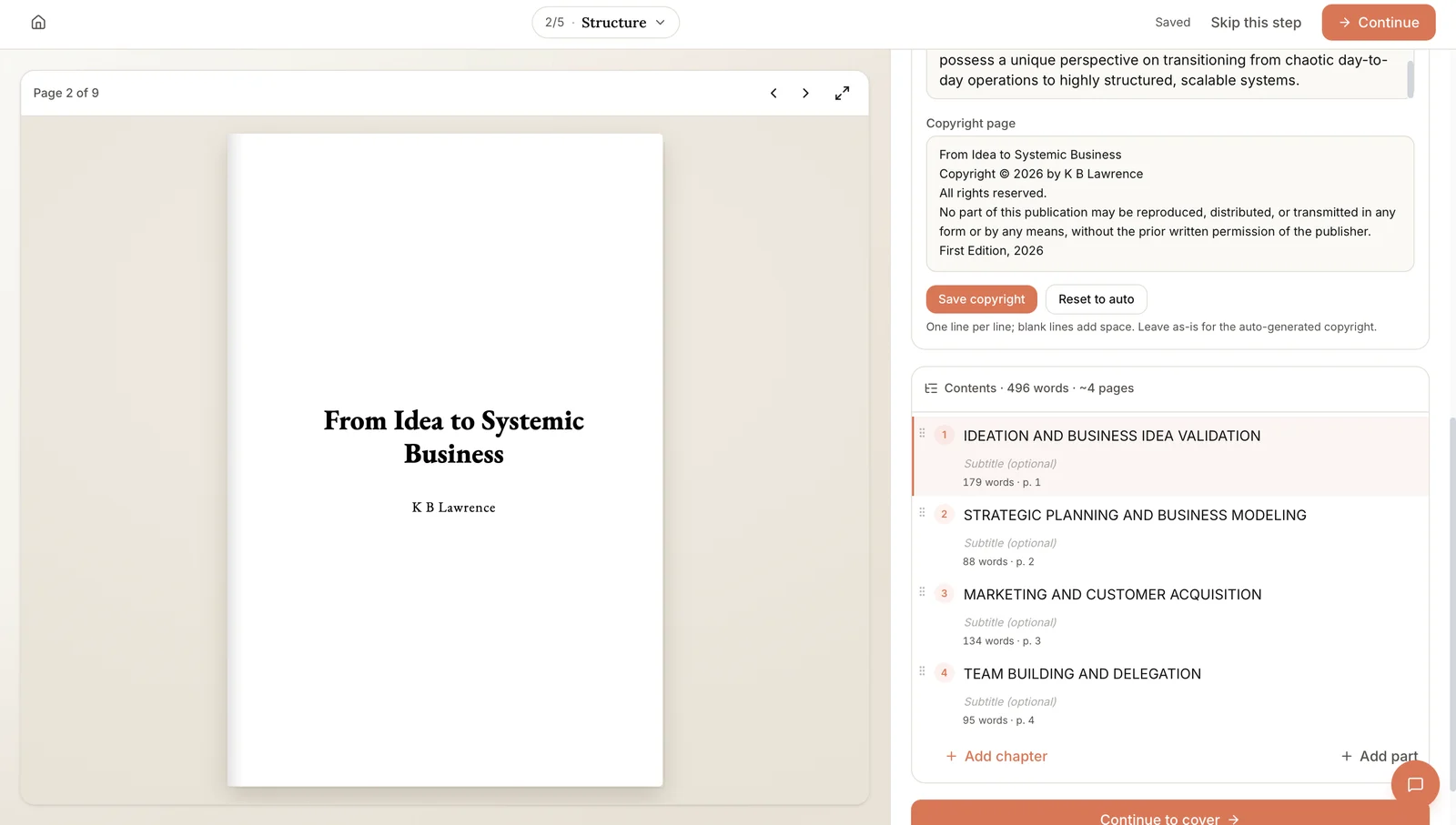
That menu comes from the book's structure, which you see and edit on the platform before any file is made. Chapters, the copyright page and the contents live in one panel, so the Kindle menu matches the book.
Text in the image:
Top: "2/5 Structure", "Saved", "Skip this step", "Continue". Left: "Page 2 of 9", the title page "From Idea to Systemic Business, K B Lawrence".
Right: "Copyright page" with the text "From Idea to Systemic Business. Copyright © 2026 by K B Lawrence. All rights reserved..." and the buttons "Save copyright" and "Reset to auto". Below: "Contents · 496 words · ~4 pages" with "1 Ideation and Business Idea Validation", "2 Strategic Planning and Business Modeling", "3 Marketing and Customer Acquisition", "4 Team Building and Delegation", "Add chapter", "Add part" and "Continue to cover".
The same export also gives you a print PDF and a KDP package for the paperback. You still upload the files in your own KDP account; Built&Written does not publish for you. One honest note on plans: writing with AI and the EPUB download need the Entrepreneur plan or higher, and the pricing page shows what each plan includes.
Inkfluence AI: the free PDF lost letters on Kindle
Inkfluence AI writes a whole book from a short idea. On the free plan, the only download is a PDF with an Inkfluence footer.
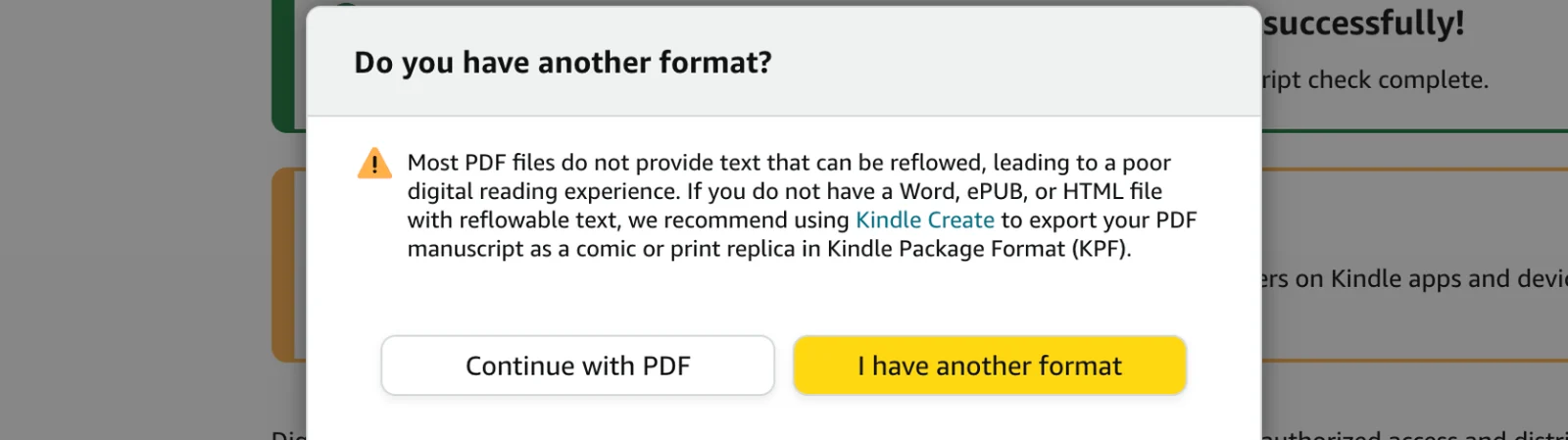
The moment we uploaded it, KDP stopped and asked a question.
Text in the image:
"Do you have another format? Most PDF files do not provide text that can be reflowed, leading to a poor digital reading experience. If you do not have a Word, ePUB, or HTML file with reflowable text, we recommend using Kindle Create to export your PDF manuscript as a comic or print replica in Kindle Package Format (KPF)." Buttons: "Continue with PDF" and "I have another format".
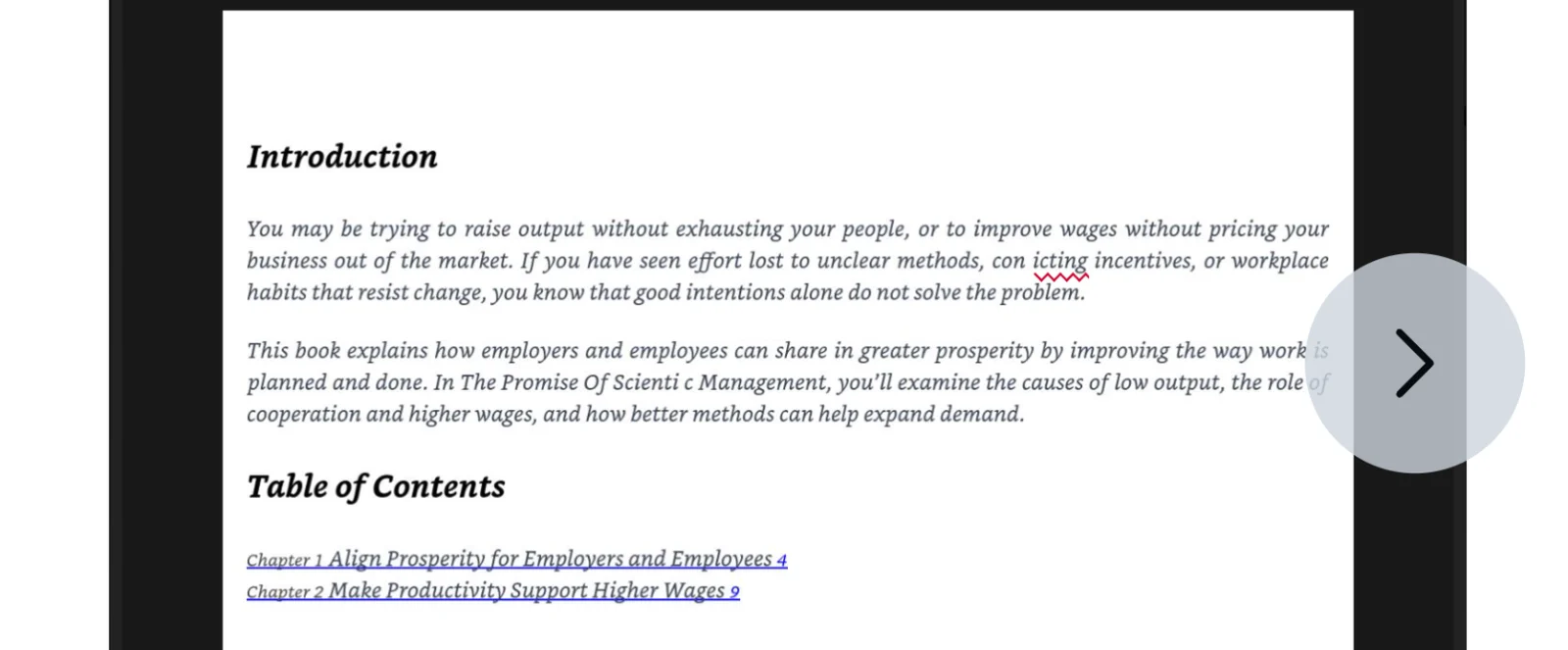
We pressed "Continue with PDF". KDP converted the file and then found 8 possible spelling errors. They were not real typos. Wherever the PDF joined the letters "fi" or "fl" into one shape, the conversion dropped them: "Scientific" became "Scienti c" and "conflicting" became "con icting".
Text in the image:
"Introduction. You may be trying to raise output without exhausting your people, or to improve wages without pricing your business out of the market. If you have seen effort lost to unclear methods, con icting incentives, or workplace habits that resist change, you know that good intentions alone do not solve the problem. This book explains how employers and employees can share in greater prosperity by improving the way work is planned and done. In The Promise Of Scienti c Management, you'll examine the causes of low output..."
"Table of Contents. Chapter 1 Align Prosperity for Employers and Employees 4. Chapter 2 Make Productivity Support Higher Wages 9."
There was more. The book opened at the introduction with no cover page, the printed contents kept page numbers that mean nothing on a Kindle, and the line "Created with Inkfluence AI" ran straight into "CHAPTER 1". The Kindle menu had one entry: "Beginning".
To be fair, this is the free PDF. Inkfluence's Creator plan, at $9.99 a month on its pricing page when we checked on October 30, unlocks EPUB and Word downloads. We did not test those files.
Canva: a clean PDF, but no chapter menu
Canva made the shortest and tidiest guide in our earlier test: 1,925 words in four chapters. Its PDF got the same "Do you have another format?" warning, then converted without a single spelling flag.
The text read well on the Kindle preview, and "Chapter 1, One Goal, Shared Prosperity" showed as a clear heading. Two things were missing. There was no cover page, and the highlighted "Core idea" boxes became plain paragraphs. The Kindle menu again had only "Beginning", so a reader could not jump between chapters.
Canva can also download a Canva Doc as a Word file. We tested the PDF only, so we cannot say how the Word file converts.
ChatGPT: no file, and Word needs a contents page
ChatGPT wrote a clean ebook of about 3,000 words from our notes. Then we asked for a Word file to upload to KDP. It said it could not attach one, and offered to help us prepare the text instead.
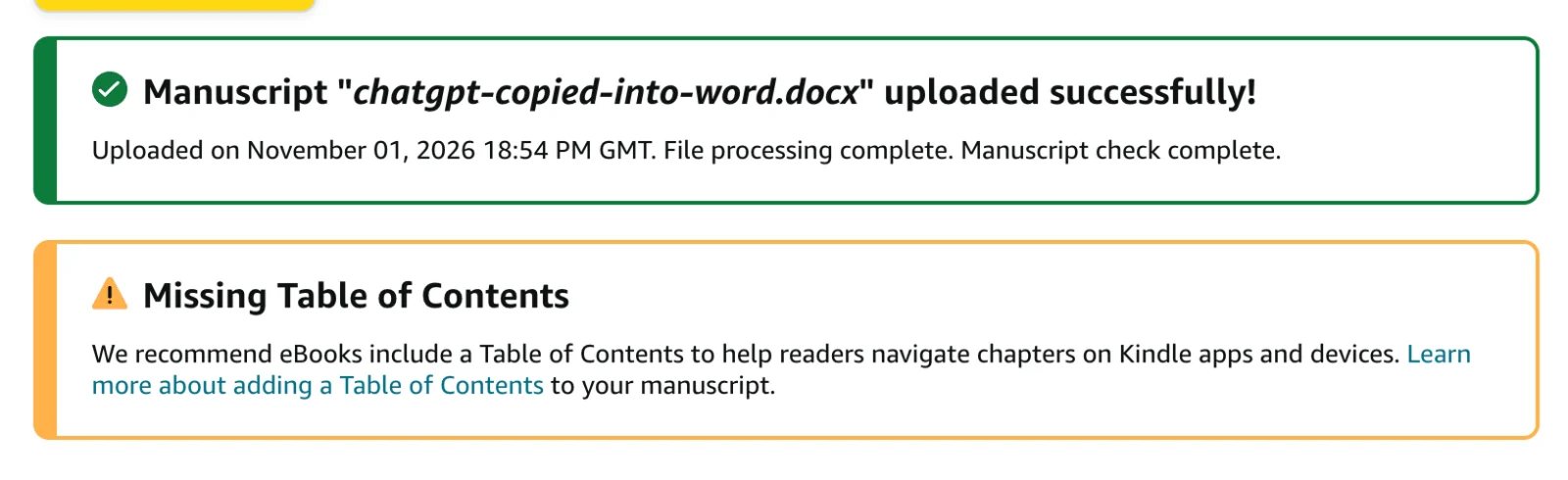
So we did what most people would do: we pasted the text into Word, made each chapter title a heading, and uploaded the file. KDP processed it without spelling issues, then showed a yellow box.
Text in the image:
"Manuscript "chatgpt-copied-into-word.docx" uploaded successfully! Uploaded on November 01, 2026 18:54 PM GMT. File processing complete. Manuscript check complete."
"Missing Table of Contents. We recommend eBooks include a Table of Contents to help readers navigate chapters on Kindle apps and devices. Learn more about adding a Table of Contents to your manuscript."
Word can build that contents page for you from your headings, but you have to know to do it, and you still need a cover, a title page and a copyright page. Our guide on how to create an ebook walks through those steps.
How to check your ebook file before you publish
You can run the same test on your own file for free, without publishing anything:
- Create a draft. In KDP, start a new Kindle ebook and fill in the details page. Nothing goes live until you press Publish on the last page.
- Upload your file. On the content page, upload your EPUB or Word file. If you see "Do you have another format?", you uploaded a PDF; find another format if you can.
- Read every message. Wait for "Manuscript check complete" and read any yellow box, such as "Missing Table of Contents".
- Check the spelling list. If KDP finds possible spelling errors, open them. Broken words like "Scienti c" mean the file lost letters.
- Open the previewer. Click "Launch Previewer", open the Table of Contents menu and click two or three chapters.
If the menu only says "Beginning", your readers will scroll through the whole book to find a chapter. Our step by step guide to publishing on KDP covers the rest of the upload, and our free KDP cover validator checks your cover file.
Final thoughts
Every AI ebook generator in our test made words. KDP took all four files too. The real difference showed up after the upload: whether the book keeps every letter, opens with a cover and lets a reader jump to a chapter. Only the EPUB with a real chapter structure did all three without a warning.
That is what Built&Written is built for: we turn the material you already have into a finished book with files KDP is happy with. What you get:
- Your own material as the start. Paste notes, posts or transcripts, or upload an old manuscript.
- An outline you approve. Nothing is written until the chapter plan looks right to you.
- Chapters in your voice. Built&Written learns how you write from 5 to 50 pages of your own text (a feature called Voice DNA).
- A structure you can see. Chapters, copyright page and contents in one panel, so the Kindle menu matches your book.
- The files KDP needs. An EPUB for Kindle, plus a print PDF and KDP package for the paperback, which you upload in your own account. Our KDP guide covers the upload.
See how it works, or compare the plans.
Frequently asked questions
EPUB, Word (DOCX) or KPF. KDP lists all three as recommended formats. A PDF is accepted, but KDP warns that most PDFs give a poor reading experience on Kindle.
Yes. KDP will convert it after a warning. In our test, one free PDF converted cleanly and another lost the letters "fi" and "fl" in many words, so always check the previewer before you publish.
Your file has no chapter structure KDP can read. Use real headings for every chapter, or a file such as an EPUB that already includes a table of contents, then upload it again.
In our test on November 1, 2026, ChatGPT wrote the text but said it could not attach a Word file. You can paste the text into Word yourself, but you still need a contents page, a cover and the front pages.
About the author

Khrystyna Balushka
More in AI Book Tools
Ready to write your book?
Turn your expertise into a professional book with Built&Written.