

Curly Quotes vs Straight Quotes: Why Your Book Looks Self-Published
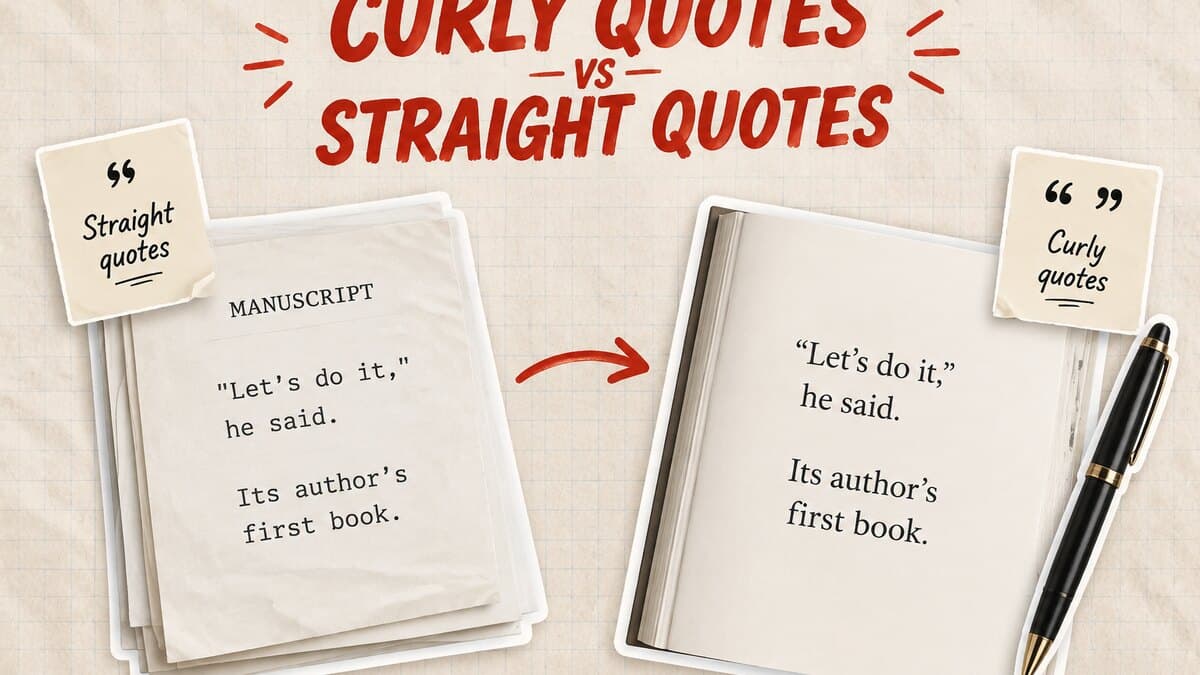
Curly quotes curve to match the letter they touch: “ ” and ‘ ’. Straight quotes are the plain vertical marks your keyboard types by default: " and '. On a KDP page, straight quotes are the fastest sign that a manuscript never went through a real formatting pass.
Professional books are built from hundreds of small decisions: typography, spacing, formatting, and consistency. Most of these details are invisible when done correctly, but they immediately stand out when they are missing. Curly quotes are just one example of what separates a raw manuscript from a finished publication.
Key takeaways
- Straight quotes slip into a manuscript through pasted text, plain-text apps, and an autocorrect setting left off, not through anything an author typed on purpose.
- Turning on smart quotes fixes new typing, but it does not fix an apostrophe like the one in ’90s, which autocorrect curls the wrong way by default.
1. The Visible Difference
| Straight quotes | Curly quotes | |
| Double quote | "Let's ship it," she said. | “Let’s ship it,” she said. |
| Apostrophe | Its author's first book | Its author’s first book |
| Look | Vertical, typewriter-style | Angled, matches the letter |
| Where it belongs | Code, plain text, web forms | Every typeset book on the market |
Every commercially printed book uses curly quotes. A manuscript that still has straight quotes on the KDP upload page reads as unformatted at a glance, whether the writing inside it is good or not. The same principle runs through the rest of a book's typesetting: margins, spacing, and page breaks all carry the same tell when they're left at their defaults.
2. Why Manuscripts End Up With Straight Quotes
Three causes account for almost every case.
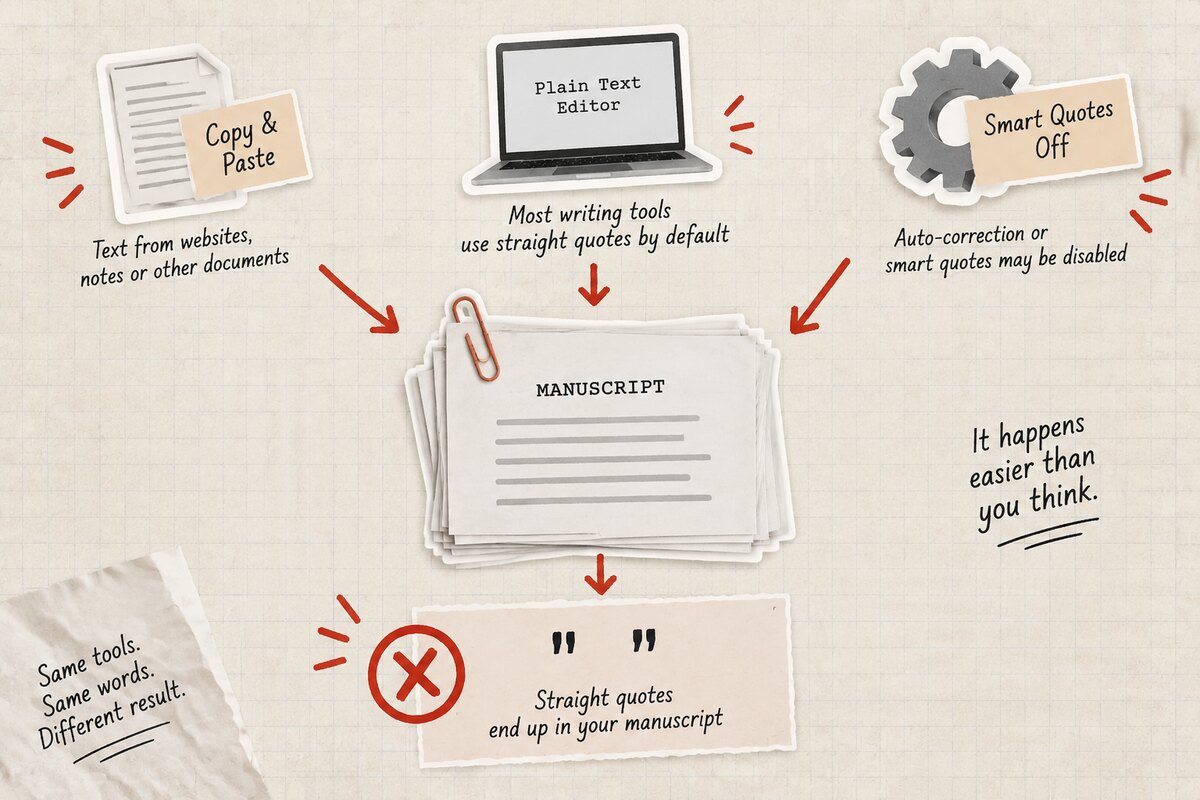
Pasted text. Copying from a notes app or a transcript tool strips smart quotes down to straight ones. The words survive the paste. The punctuation doesn't.
Plain-text and Markdown editors. These tools treat a quote mark as a plain character on purpose, because code needs it to mean one exact thing. Any section drafted in one keeps straight quotes after the paste.
Smart quotes switched off. Word, Google Docs, and Scrivener all convert quotes automatically, but only when that setting is on. A shared template or a fresh install can leave it off without the author noticing for hundreds of pages.
These small issues are common because writing and publishing are two different stages. A manuscript can be complete, but it still needs professional preparation before becoming a finished book.
3. Fix It in Word, Google Docs, and Scrivener
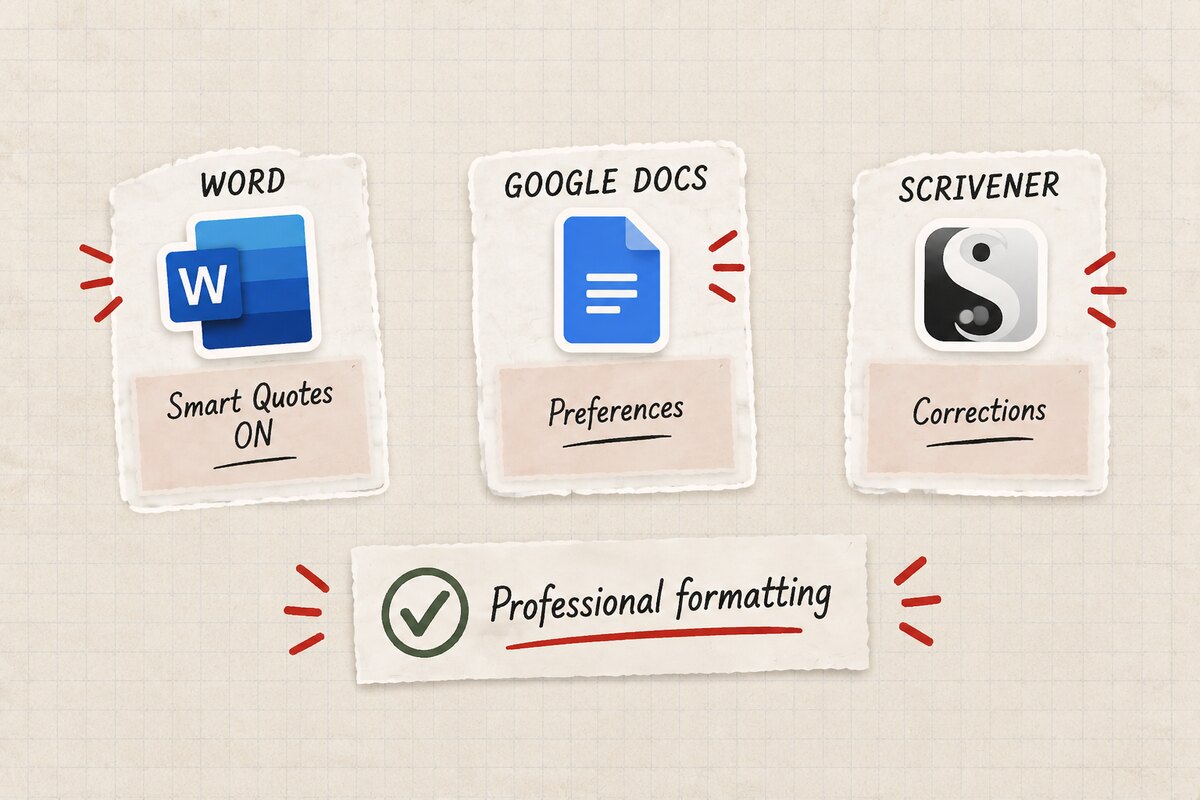
Word. File, Options, Proofing, AutoCorrect Options, AutoFormat As You Type tab: check "Straight quotes" with "smart quotes." For text already typed, open Find and Replace (Ctrl+H), search for a straight double quote, replace it with itself using Replace All. Word reprocesses every instance.
Google Docs. Tools, Preferences, check "Use smart quotes." This only applies going forward. Fix existing straight quotes by deleting and retyping them once the setting is on.
Scrivener. The Corrections section of Preferences has its own smart-quotes toggle. For a manuscript pasted in from elsewhere, use Scrivener's text conversion tools to convert the whole project in one pass instead of chapter by chapter. If you're still choosing between the two, our Scrivener vs Word comparison covers the rest of the formatting differences.
About Built&Written: Each of these tools needs a setting found first, turned on, and then checked against text already on the page. Built&Written's Wren skips that setup: it writes in correct typographic quotes from the first sentence, whether you're dictating a chapter, pasting an old blog post, or turning a call transcript into a manuscript. Nothing to switch on, nothing to Find and Replace later.
4. The Apostrophe Traps Autocorrect Gets Backwards
Decades, like ’90s. Autocorrect reads the leading apostrophe as the start of a quotation and curls it the wrong way. It should curl the same direction as the one in "don't." Fix: retype it, then insert the correct closing single-quote character directly.
Contractions that open a word, like ’n’ in rock ’n’ roll. Both marks stand in for missing letters and should curl as closing marks. Autocorrect flips the first one for the same reason it fumbles ’90s.
Tip: If a manuscript repeats the same decade or slang term, fix it once, then run Find and Replace for that exact string instead of hunting through the file by eye.
5. Publish on KDP Without the Formatting Headache
Creating a book requires more than writing the words. A finished publication needs professional formatting, consistent typography, and technical preparation for every publishing format.
Built&Written helps authors move from raw ideas, drafts, notes, and transcripts to a publication-ready manuscript. Wren handles the technical details, including typography, formatting, and file preparation, so authors can focus on their story instead of fixing hundreds of small publishing issues:
- Publishing-grade typography by default. Curly quotes, correctly-directed apostrophes, and the ’90s and rock ’n’ roll cases most tools flip, all render correctly as you write.
- Clean pickup of raw material. Notes, call transcripts, and old posts come in and come out matching the rest of the manuscript, no matter what punctuation style the source used.
- Export without a reformatting pass. A print-ready PDF, an EPUB, and a DOCX all come out of the same manuscript, already formatted, with nothing to convert file by file before upload to KDP.
Final thoughts
Professional publishing is built from details readers may never consciously notice, because everything simply feels right. Built&Written handles these details from the beginning, helping turn your manuscript into a finished book ready for readers. For the rest of what a finished interior needs, see our guide to formatting a book for Kindle.
Frequently asked questions
What are curly quotes called?
Curly quotes, smart quotes, and typographer's quotes are the same thing: quotation marks and apostrophes that curve to match the letter they touch.
How do I turn straight quotes into curly quotes?
Turn on smart quotes in your word processor's settings, then run Find and Replace on text typed before the setting was on.
Why does my apostrophe curl the wrong way in ’90s?
Autocorrect reads it as the start of a quotation. Retype it and insert the correct closing apostrophe by hand.
Do curly quotes matter for a self-published book?
Yes, for how professional the finished book looks. KDP won't reject a file over it, but readers notice.
Can I fix quotes after formatting for KDP?
Yes. Turn on smart quotes, run Find and Replace, fix the apostrophe exceptions by hand, then re-export.
Frequently asked questions
Curly quotes, smart quotes, and typographer's quotes are the same thing: quotation marks and apostrophes that curve to match the letter they touch.
Turn on smart quotes in your word processor's settings, then run Find and Replace on text typed before the setting was on.
Autocorrect reads it as the start of a quotation. Retype it and insert the correct closing apostrophe by hand.
Yes, for how professional the finished book looks. KDP won't reject a file over it, but readers notice.
Yes. Turn on smart quotes, run Find and Replace, fix the apostrophe exceptions by hand, then re-export.
About the author
Khrystyna Balushka
More in Book Formatting
Ready to write your book?
Turn your expertise into a professional book with Built&Written.